What it is
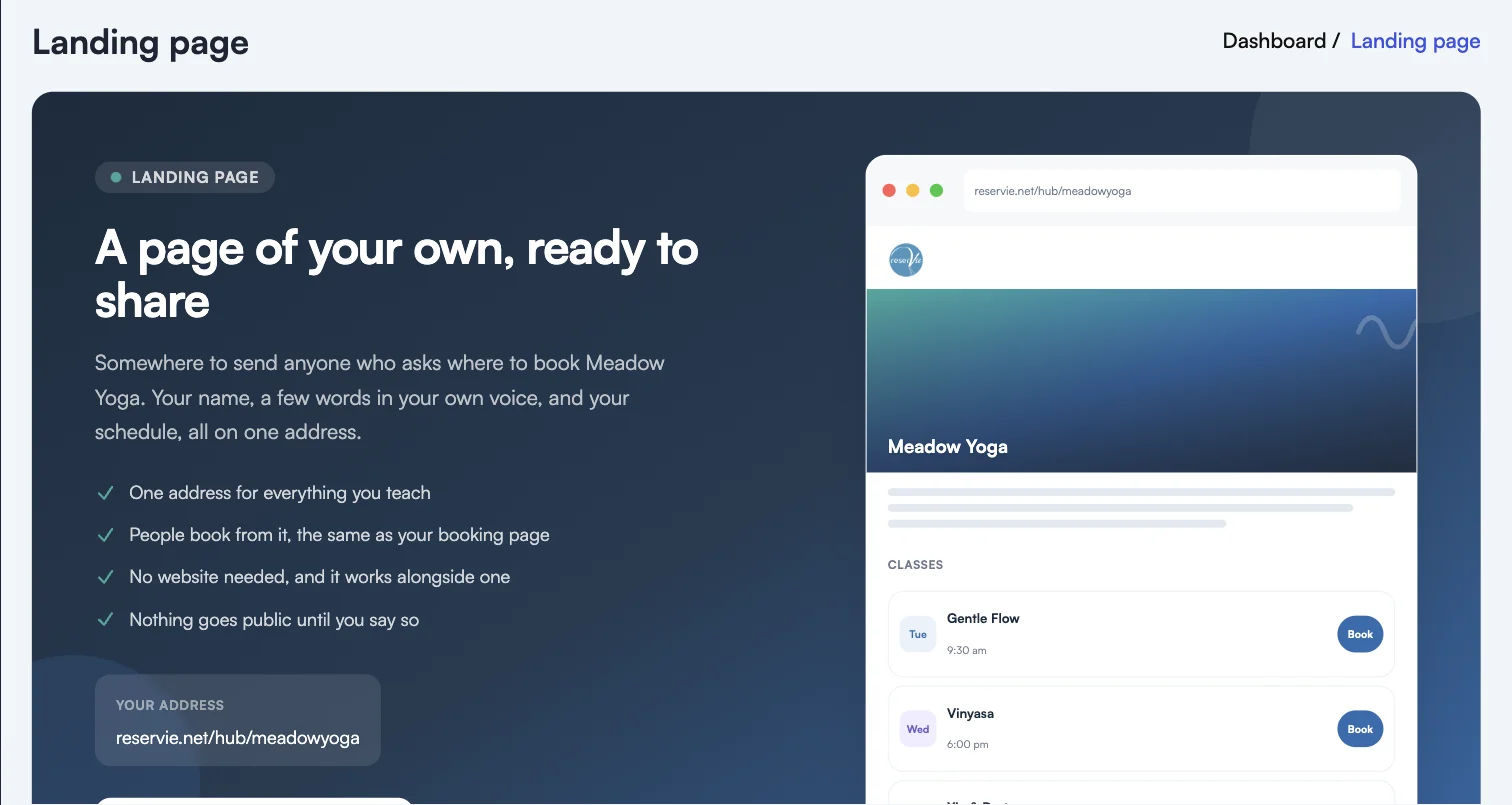
Your landing page is a public web page for your studio, built inside reservie. You fill in four short steps, press a button, and you have a page at a permanent address showing who you are and what is on, with everything bookable.
It is not a website builder. There is one page, it has a fixed shape, and you choose the words and the picture rather than the layout. That is deliberate: it is the reason it takes a couple of minutes rather than an afternoon.
You will find it as Landing page in the menu.
Who it helps
If you do not have a website, this is your website. One address that answers “where do I book?”, with your name, your words, a photograph and your live timetable. Until now the only thing you could hand out was a booking link for a single schedule or class, which is an awkward thing to put on a flyer.
If you already have a website, this sits alongside it. It is the single link for an Instagram bio, a WhatsApp reply or a poster QR code, and it is always current because the timetable comes straight from your schedule. No copying class times onto a website that then goes out of date.
The practical benefits, roughly in the order they matter:
- One link that never needs updating. The classes on it are your live schedule.
- People book directly from it, in the same way they book anywhere else in reservie.
- A short, sayable address for print and social media.
- It can be found in a search engine once you publish it.
Where your page lives
Your page has two addresses, and both work:
| Address | Best for | |
|---|---|---|
| Full | https://reservie.net/hub/{studio}/ | Linking from another website |
| Short | https://rsvi.uk/{studio} | An Instagram bio, a flyer, saying out loud |
{studio} is your reservie subdomain, the same one your booking pages already use. The short address is created for you when you publish. You do not sign up for anything and there is nothing to configure.
You cannot choose the address. It follows your subdomain, so if your studio is ever renamed the page moves with it and the old address stops working.
What is on the page
Top to bottom:
- Your logo, if you have uploaded one in Settings and switched it on.
- A wide banner photograph with your studio name across it.
- Your welcome, in your own words.
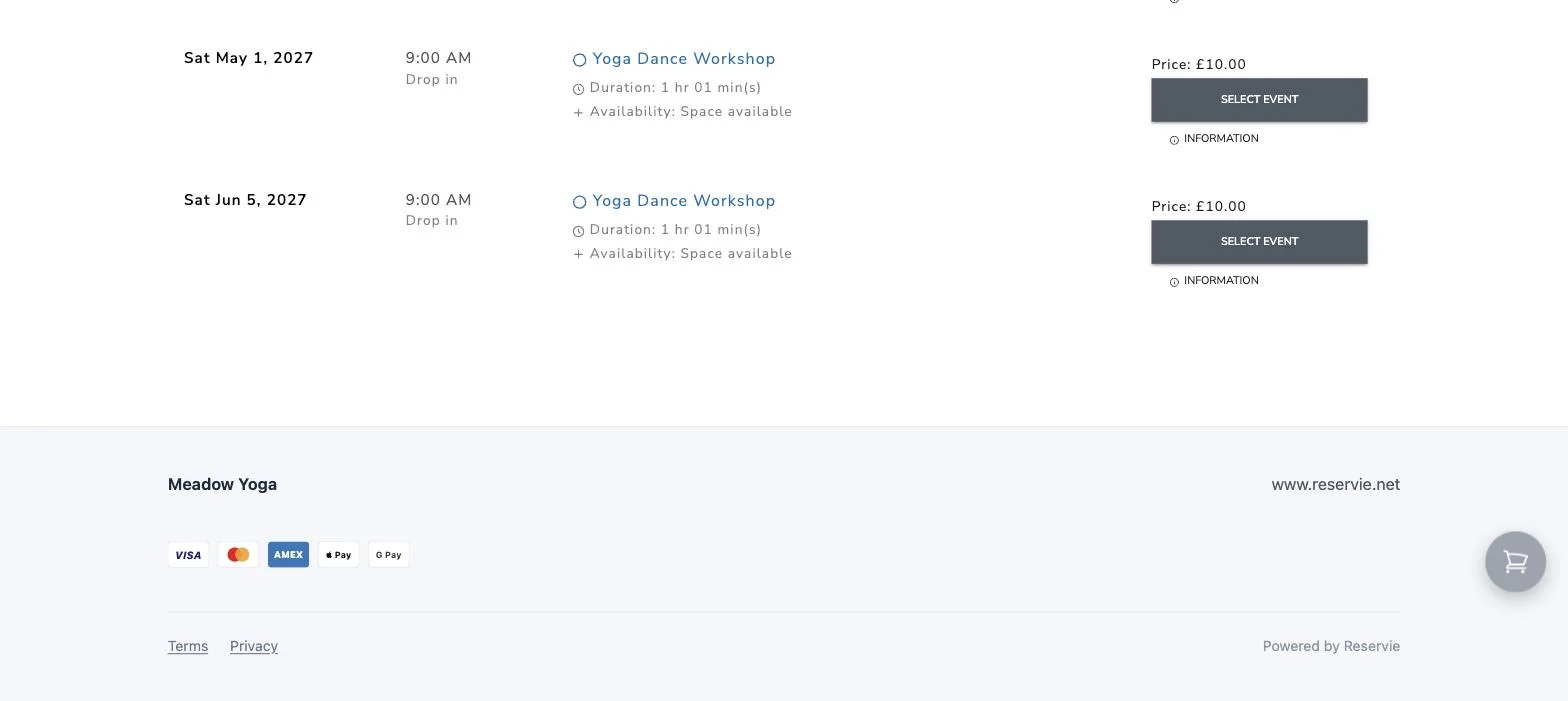
- Your timetable, with booking buttons.
- Your contact details and social links, then your terms and privacy links.
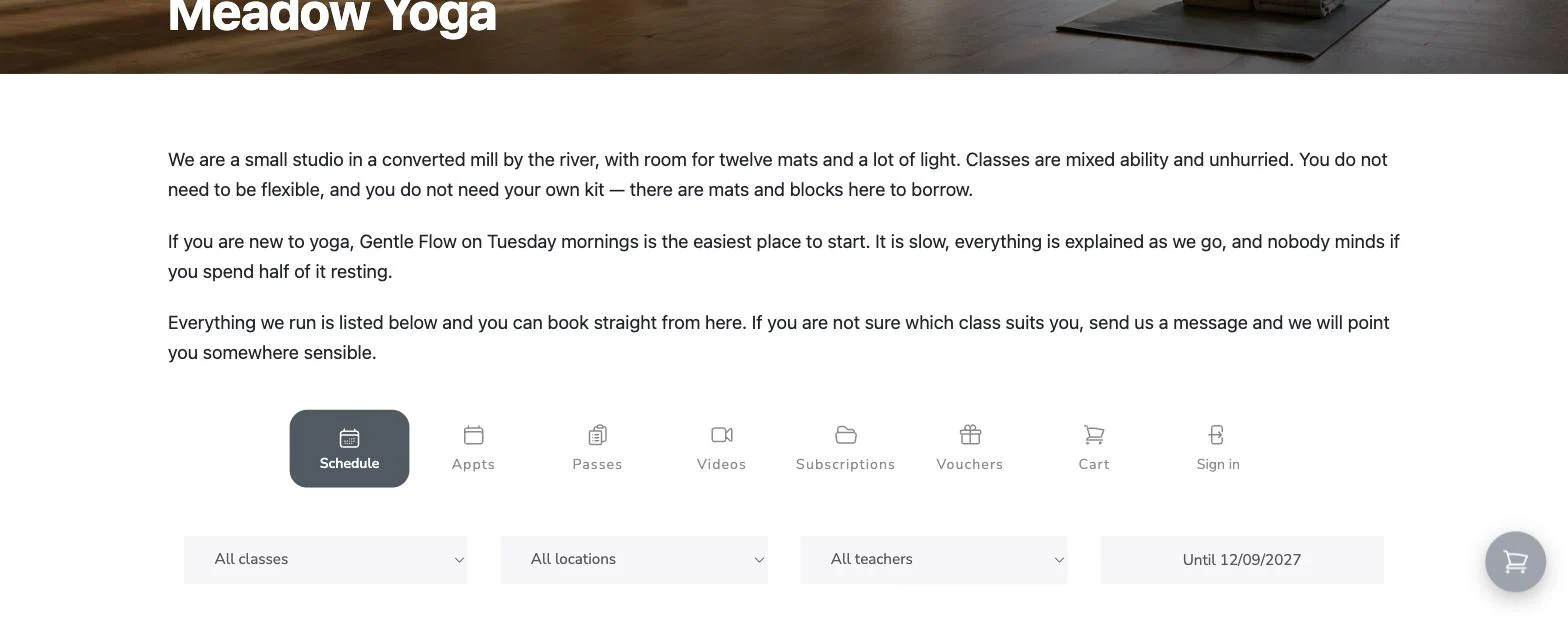
Contact details are opt-in one at a time. Your address, website, email and phone each have their own switch, and they all come from Settings rather than being typed again, so nothing appears that you have not turned on.
Your terms and privacy links are not switches. A page that takes payments shows its own terms.
What it does not do
Your page shows one schedule rather than several, and it is a single page with nothing beneath it.
The layout is fixed. You choose the words and the photograph rather than the design, which is what keeps this to a couple of minutes’ work instead of an afternoon’s. The one visual choice you do have is the colour of the booking buttons, and that comes from your schedule settings rather than from here. Change it there and your landing page follows.
Next steps
- Creating Your Landing Page walks through the four steps.
- Choosing Your Picture covers the part people most often get wrong.
- Publishing and Taking It Offline explains going live and coming back down.