
What’s in this tab
The Customer Reports tab sits second along the top of the Reports page. It currently holds one report, Marketing Opt-ins.
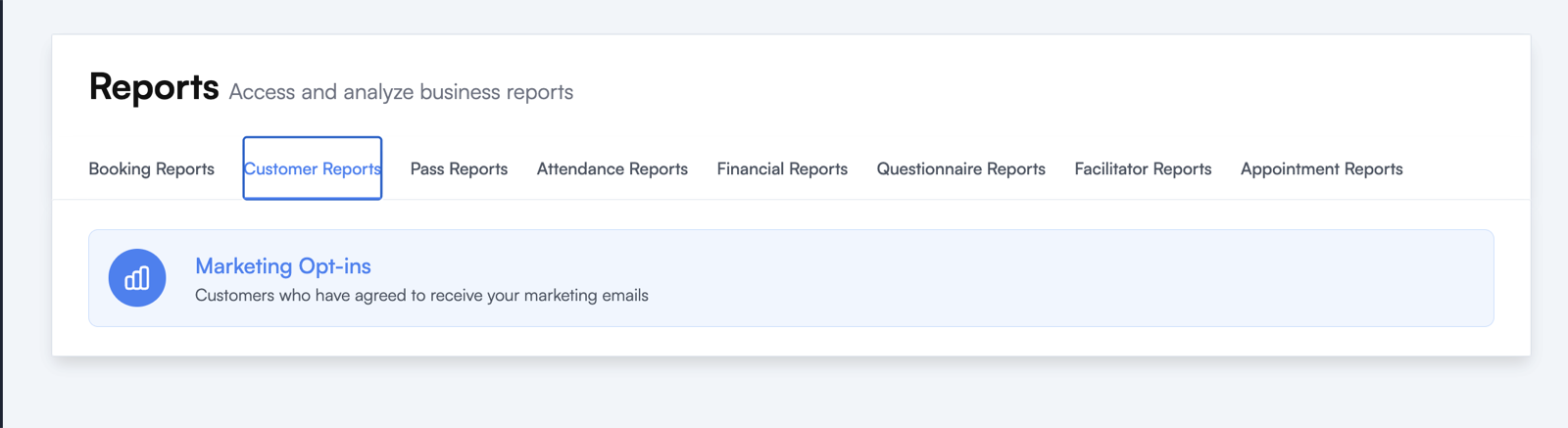
Marketing Opt-ins
This report lists every customer who has ticked Send me news, offers and updates by email at your checkout. That tick box only appears once you’ve switched it on in Checkout Settings, so the report stays empty until then.
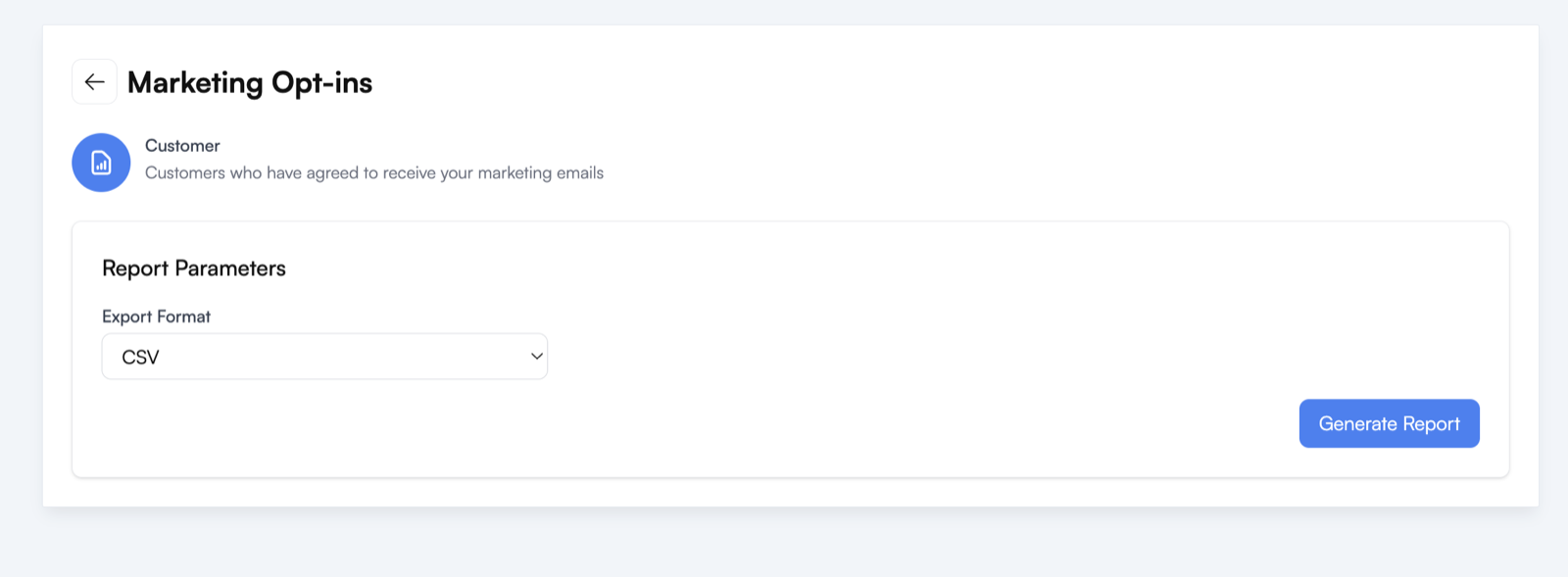
It’s a list of who you can email today, so there’s no date range to choose. Each time you run it, you get the current list.
What the report shows
| Column | What it contains |
|---|---|
| Firstname | The customer’s first name |
| Lastname | The customer’s last name. The list is sorted by this. |
| The email address they opted in with |
Who isn’t included
- Anyone who has changed their mind. A customer who unticks the box at a later checkout drops off the report straight away.
- Customers you’ve archived or deleted.
- Phone numbers, for everyone. Customers agreed to marketing by email only, so the report leaves phone numbers out.
Running the report
- Go to Reports in the sidebar and click the Customer Reports tab.
- Click Marketing Opt-ins.
- Choose an Export Format: CSV, Excel or PDF.
- Click Generate Report.
Getting the list into your email tool
Mailchimp, Constant Contact, Loops and most other email tools can import a CSV file, so choose CSV as the export format. Then import the file into your email tool as a list, or add it to an existing audience.
reservie doesn’t send the list to your email tool automatically. You move it across yourself by exporting and importing.
Keeping your list up to date
Because the list moves by export, it’s only as current as the last time you updated it. Two things are worth knowing:
- People who untick the box in reservie aren’t removed from your email tool. They leave the report, but your email tool still has them from your last import. When you update your list, remove anyone who’s no longer on the report.
- People who unsubscribe from your emails still appear in this report. Their unsubscribe is recorded in your email tool, not in reservie. Before importing a fresh copy, check that your email tool keeps them unsubscribed and doesn’t sign them up again.
Updating your list on a regular schedule, such as once a month or before each newsletter, keeps the two roughly in step.
Related
- Checkout Settings: switch the tick box on or off
- Reports Overview: how reports work, and the other report tabs