
Overview
The Checkout Settings tab covers two things: the booking window for your events and classes, and whether your checkout asks customers if they’d like to receive your marketing emails.
To access it, navigate to Settings from the sidebar menu, then click the Checkout Settings tab.
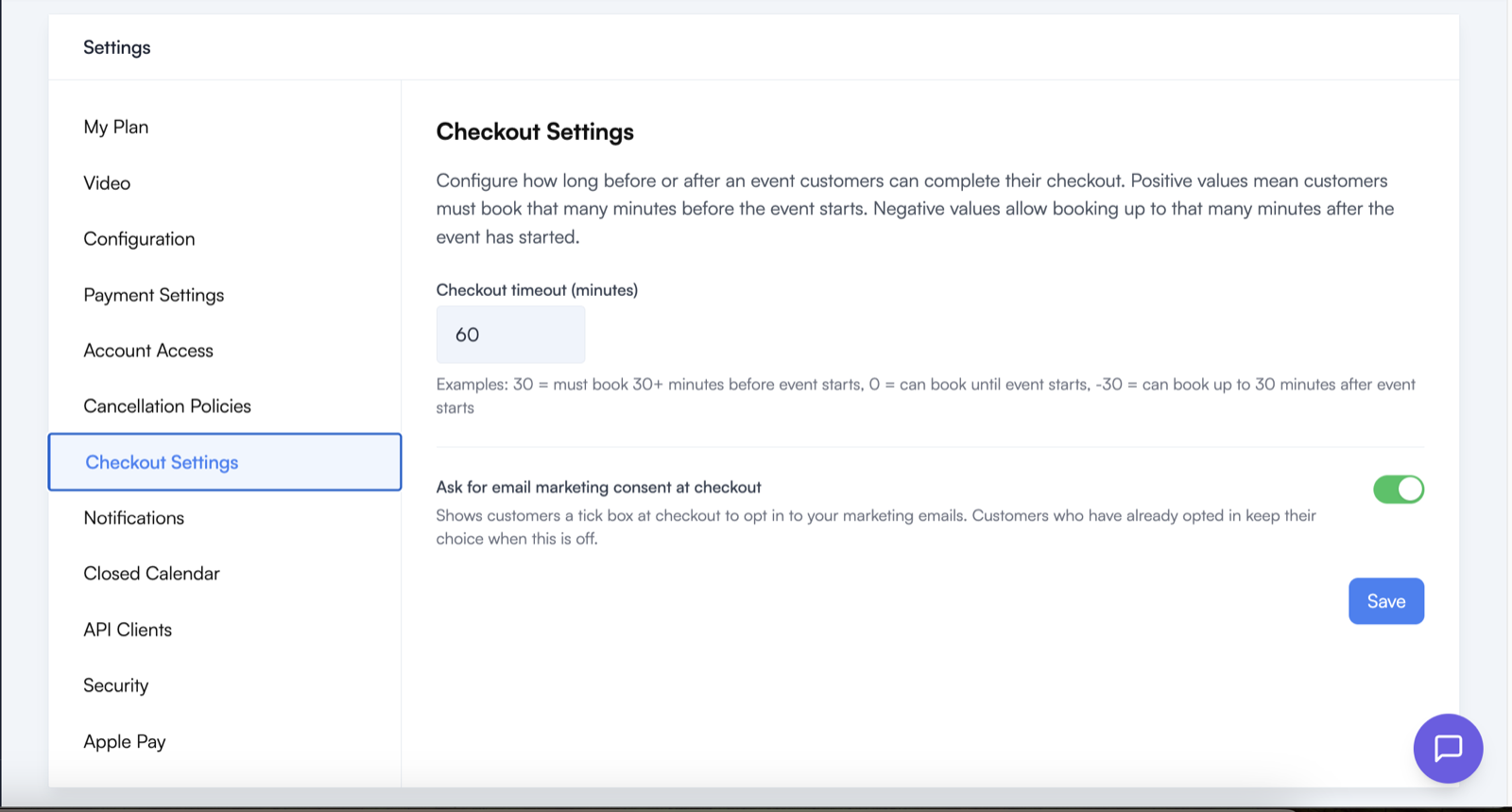
Checkout timeout
The Checkout timeout (minutes) field controls how far in advance of (or after) an event’s start time customers can complete their checkout. It accepts a positive, zero or negative value:
| Value | Meaning |
|---|---|
| 30 | Customers must book at least 30 minutes before the event starts |
| 0 | Customers can book right up until the event starts |
| -30 | Customers can book up to 30 minutes after the event has started |
Common scenarios
- Yoga studio with drop-ins: Set to
-15to allow late arrivals to book up to 15 minutes after class begins - Workshop with preparation needed: Set to
60to close bookings 1 hour before the event - Flexible classes: Set to
0so bookings close exactly when the class starts
Asking for email marketing consent
Switch on Ask for email marketing consent at checkout and your checkout shows a tick box underneath the terms and conditions box. It reads:
Send me news, offers and updates by email.
The setting is off until you switch it on, so your checkout doesn’t change unless you choose to use it.
How the tick box behaves
- It starts from the customer’s current choice. Someone who hasn’t opted in sees it unticked. Someone who has already opted in sees it ticked.
- It’s saved straight away. The choice is recorded the moment the box is ticked or unticked, whether or not the customer goes on to finish their booking.
- It belongs to the person paying. If a customer books places for other people, only the customer making the booking is asked. The people they book for aren’t opted in.
- Customers can change their mind. Anyone who has opted in can untick the box the next time they book, and they’ll come off your list.
- It only appears when it can show the right answer. If a customer’s current choice can’t be loaded, the box is left out of that checkout rather than shown unticked, which might not match what they chose before.
The tick box asks about email only. It doesn’t give you permission to text or phone customers.
Turning it off again
Switching the setting off removes the tick box from your checkout. Customers who have already opted in keep their choice, so they stay on your list.
Seeing who has opted in
- For one customer: open their customer record. The Marketing line shows either Opted in to email marketing or Not opted in to email marketing.
- For everyone: the Marketing Opt-ins report lists every customer who has opted in, ready to export to your email tool. See Customer Reports.
Saving changes
After changing either setting, click Save. Changes apply straight away to every new checkout.