What is reservie?
Reservie is a booking and scheduling platform designed for yoga and Pilates teachers and studios, retreat companies, and similar class-based businesses. It lets you create events, manage bookings, accept payments, and communicate with your customers, all from one place.
How it works
Once you create a reservie account, you get access to the admin panel where you manage your business. Your customers book through your unique reservie address (e.g. https://your-name.reservie.net), which is where your customers go to book.
The setup wizard
Every new account starts with a short setup wizard, which opens on your dashboard and walks you through five steps. By the end you have a class on your timetable, a 1:1 session people can book, and a way for customers to reach you. Everything it sets up can be changed later.
Step 1: currency and time zone
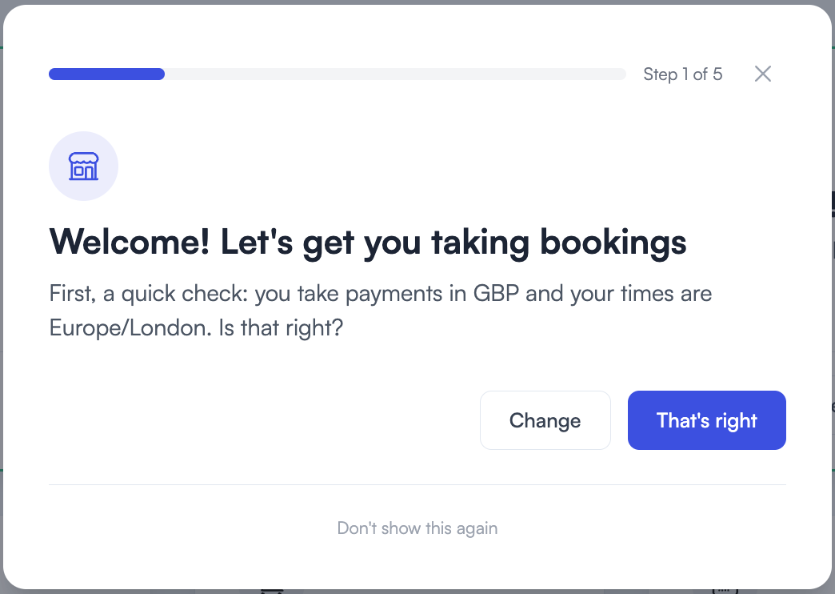
The wizard checks the currency your customers pay in and the time zone your classes run in. If both are right, choose That’s right.
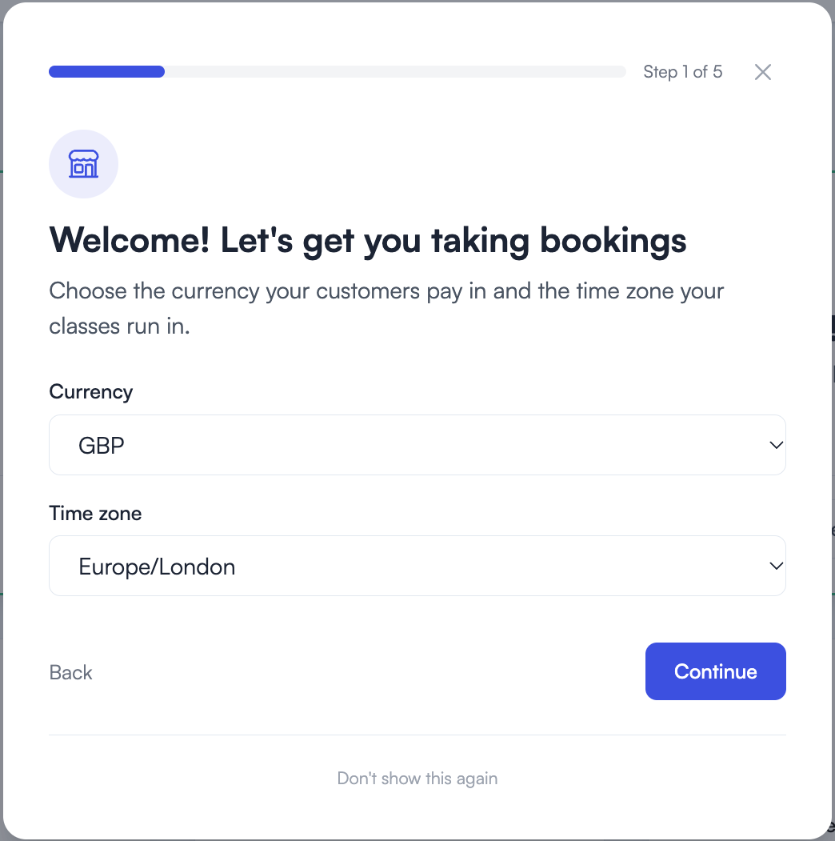
If either is wrong, choose Change, pick the right Currency and Time zone, then Continue.
Step 2: your first class
Three quick answers put a weekly class on your schedule:
- Class name, for example Tuesday Vinyasa Flow
- Every and At: the day of the week and the start time
- Length (30 minutes to 2 hours) and Price
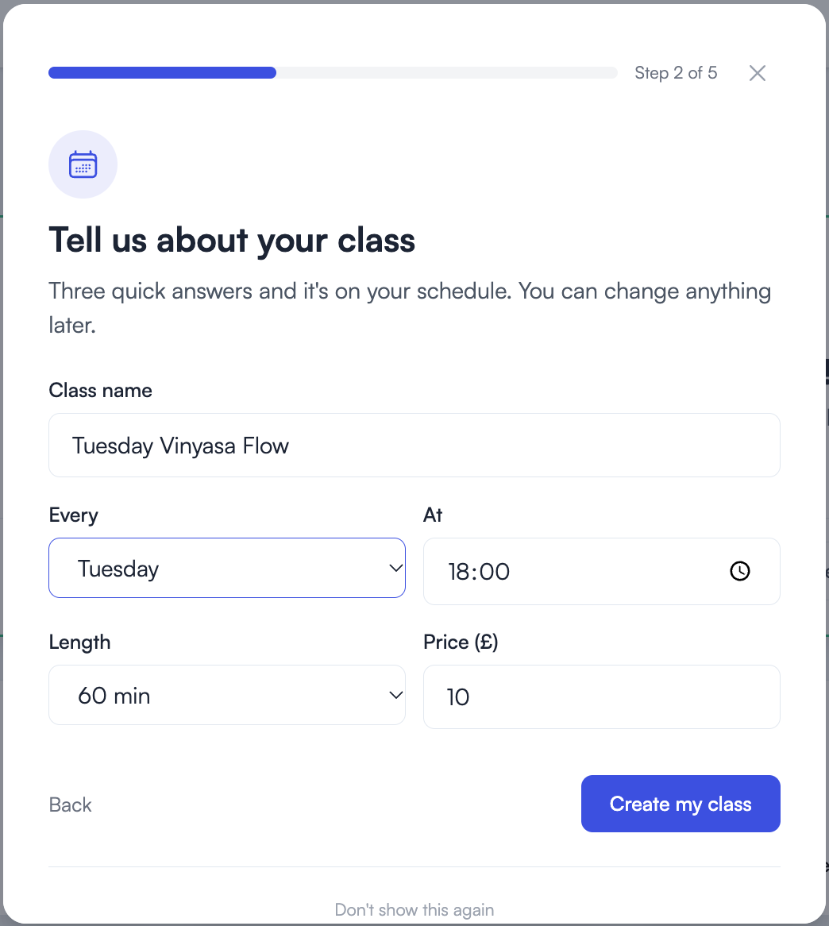
Choose Create my class. The next 10 weeks open for booking straight away, and more dates are added automatically as time goes on. You can add another class here, or Continue.
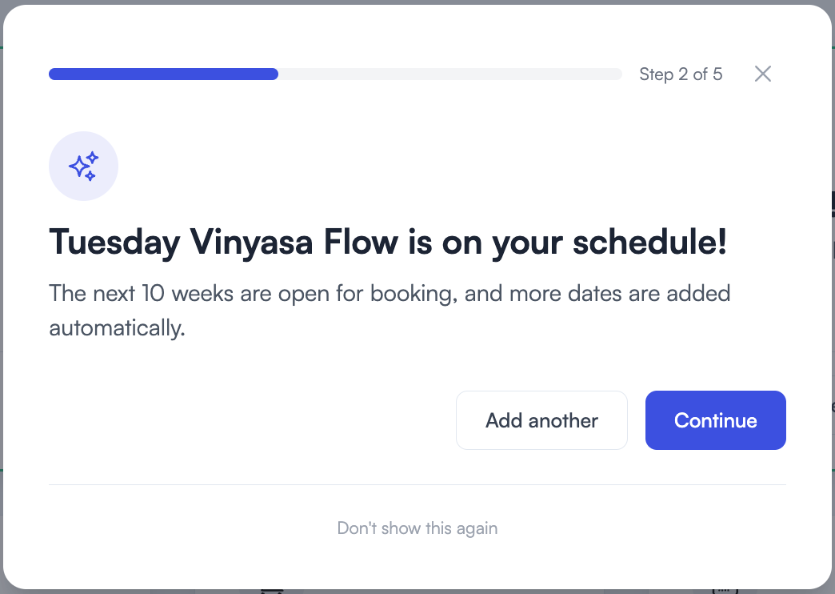
If you already have classes set up, the wizard lists them instead and offers Add another.
Step 3: a 1:1 session
Next, a private session that customers can book at a time that suits them:
- Session name, for example Private yoga session
- Length (30 to 90 minutes) and Price
- Who gives this session?: you, or a teacher you’ve already added as a facilitator. If it’s you, check your first and last name.
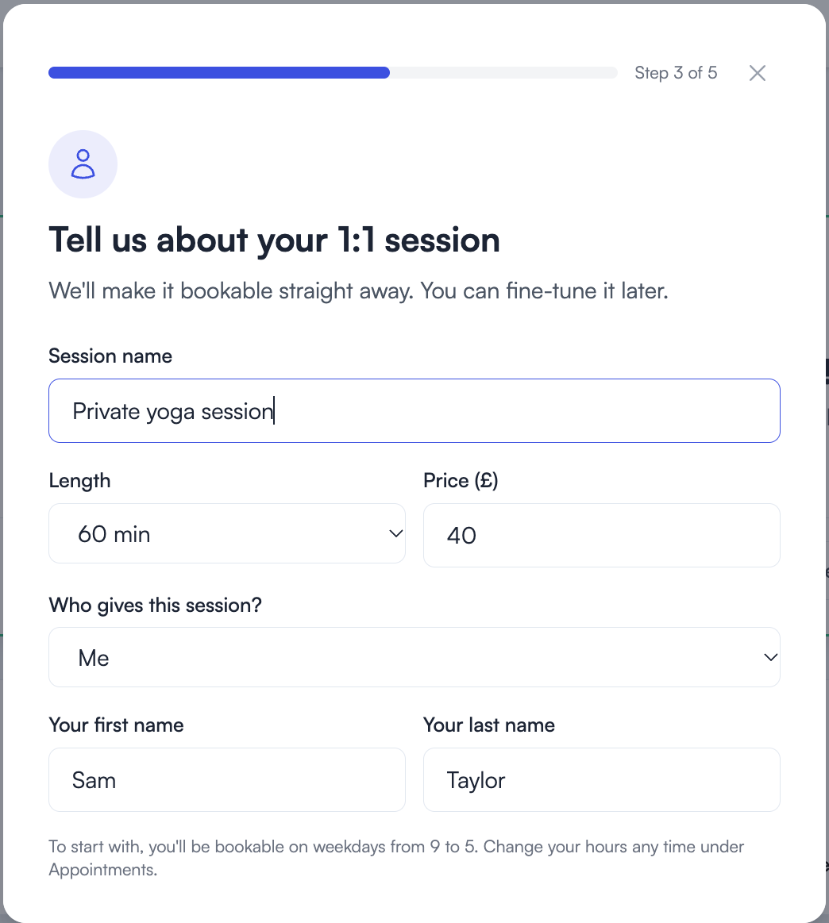
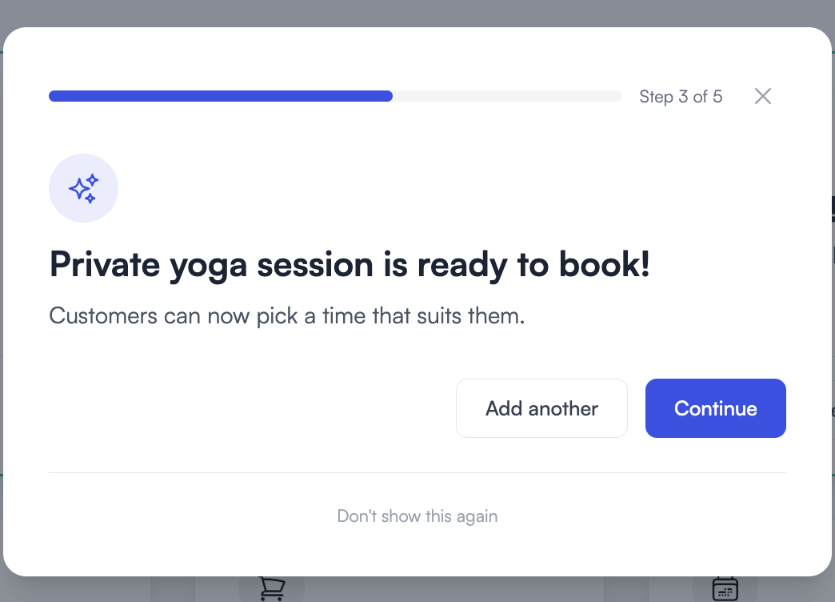
Choose Create my session. To start with, you’re bookable on weekdays from 9 to 5. You can change your hours any time under Appointments.
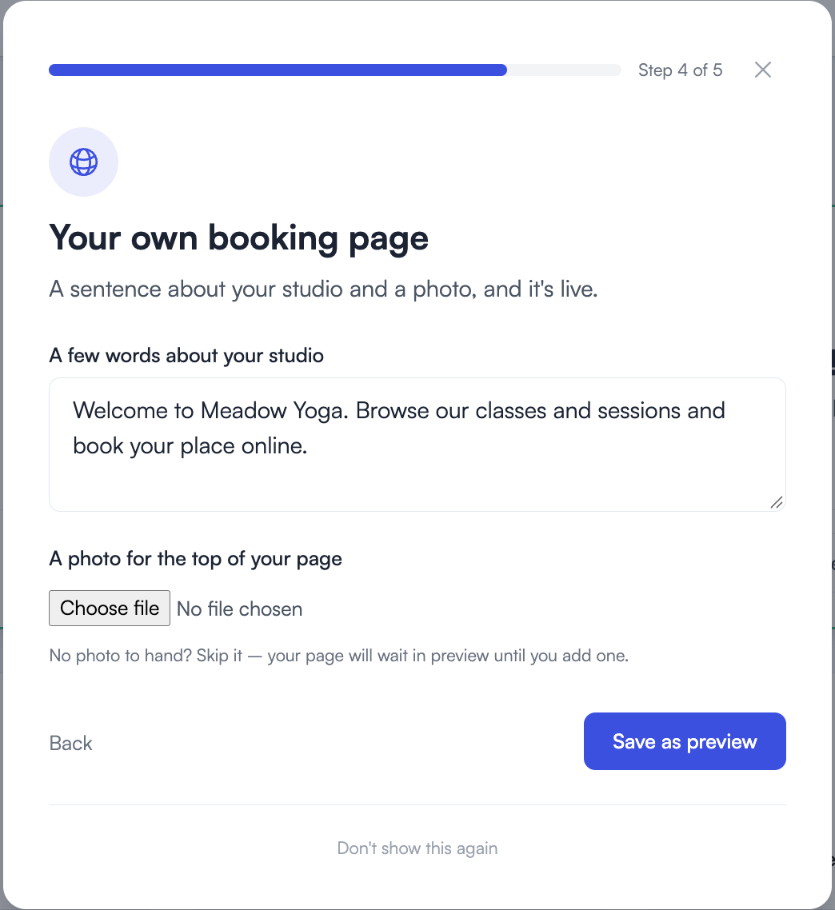
Step 4: where your customers book
Choose how customers will reach your timetable:
- On my own website: you add booking to a website you already have.
- I’d like a Reservie page: you get a booking page of your own, with no website needed. In the menu, this is Landing page.
- Both.
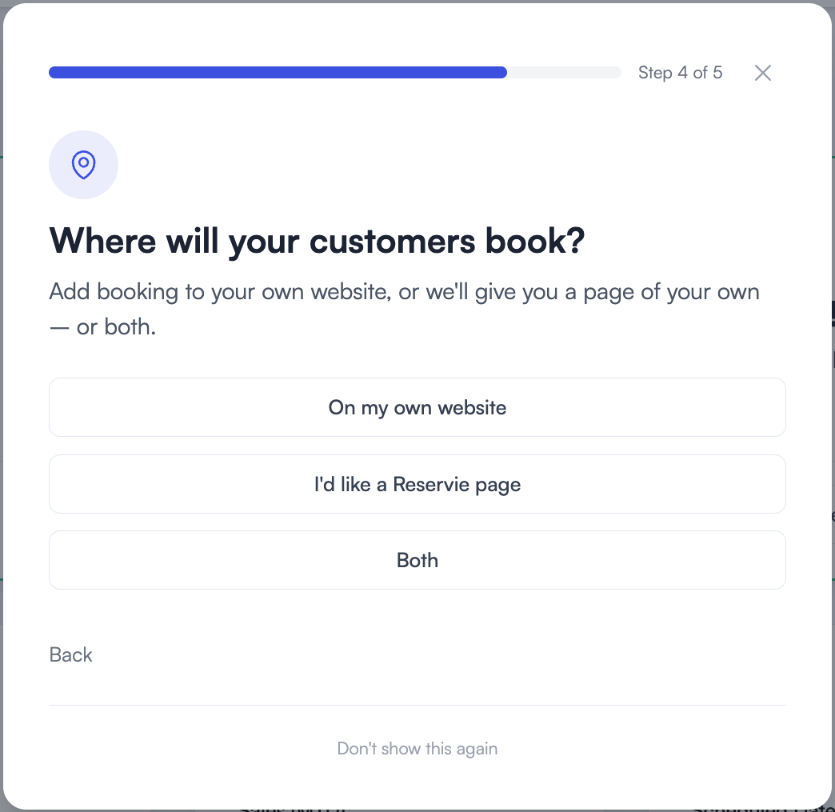
If you want a Reservie page, write a few words about your studio and add a photo for the top of the page. No photo to hand? Choose Save as preview, and your page waits in preview until you add one.
Step 5: you’re open for bookings
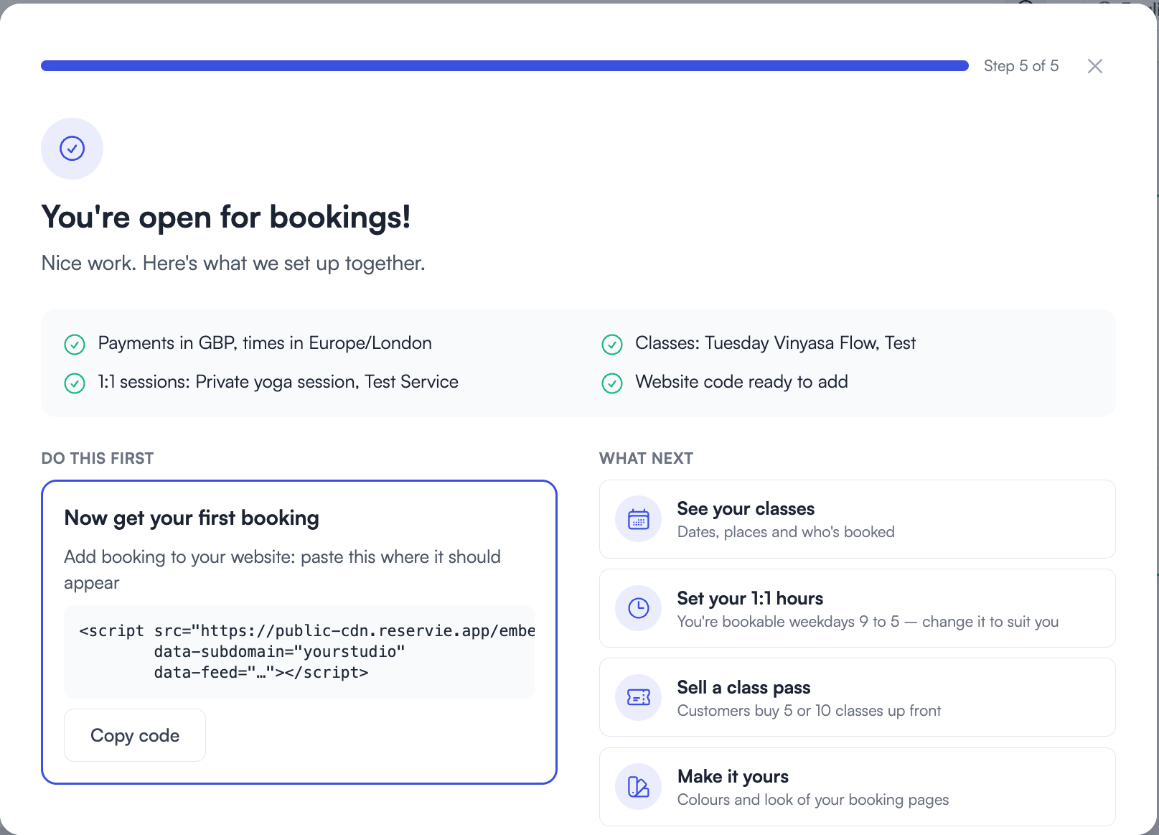
The last screen sums up what you set up together, and shows the one thing to do first:
- On your own website: copy the short piece of code shown and paste it where the booking should appear on your site. Adding Reservie to Your Website explains where it goes. If you’d rather not touch your website, raise a support ticket and we’ll add it for you.
- A Reservie page: add a photo and choose Make it live, or Preview your booking page first.
Payments are already taken care of: you connected your Stripe account when you signed up, and that is where your customers’ payments go. (The card you gave at sign-up is separate. It’s for your own reservie plan.)
Under What next are four shortcuts: see your classes, set your 1:1 hours, sell a class pass, and change the colours and look of your booking pages. Choose Go to my dashboard when you’re done.
After the wizard
The wizard covers the basics. From here, you might want to:
- Add more classes, workshops or courses. See Creating an Event.
- Set your 1:1 hours and add more services. See Getting Started with Appointments.
- Sell class passes. See Getting Started with Passes.
- Create a schedule to embed on a particular page of your website. See Creating a Schedule.
- Finish your booking page. See Getting Started with Your Landing Page.
The admin panel
The admin panel is organised around a sidebar menu with the following sections:
| Section | Description |
|---|---|
| Dashboard | Overview of your business: stats, availability, upcoming events, sales, and waiting lists |
| Services | Events, Appointments, Categories, Locations, Terms, and Payment Rules |
| Video on demand | Manage on-demand video content for customers |
| Customers | View and manage your customer records and groups |
| Schedules | Create embeddable timetables for your website |
| Landing page | Your own booking page (the “Reservie page” in the wizard), with no website needed |
| Questionnaires | Custom forms and questionnaires for customers |
| Passes | Class passes and credit bundles |
| Subscriptions | Recurring subscription and membership plans |
| Vouchers | Discount vouchers, credit notes and gift vouchers |
| Mobile Connect | Set up the upcoming Reservie Connect app. Your customers download it once, and it then shows your studio’s logo and colours once they have connected to your business |
| Settings | Company information, payment settings, cancellation policies, and more |
| Notifications | Email notification templates |
| Integrations | Connect with Zoom and other third-party services |
| Reports | Business reports and analytics |
| Bulk Actions | Perform actions across multiple records |
| Facilitators | Manage instructors and facilitators |
| Support | The knowledge base and your support tickets |
Getting help
If you need assistance, you can raise a support ticket or contact the reservie team directly. The support documentation covers each section of the admin panel in detail. Use the links below to explore further.
Next steps
- See Your Dashboard for an overview of the dashboard.
- See Accepting Payments Online for setting up Stripe.
- See Adding Reservie to Your Website for embedding your booking system.
- See Customer Portal Overview for how your customers access their accounts.