
Overview
Payment rules let you offer automatic discounts based on the quantity a customer purchases in a single transaction. Unlike voucher codes, payment rules are applied automatically at checkout when the customer meets the configured criteria.
Payment rules are managed from Services > Payment Rules in the sidebar menu.
Creating a payment rule
- Navigate to Services > Payment Rules from the sidebar menu.
- Click the + Create Payment Rule button.
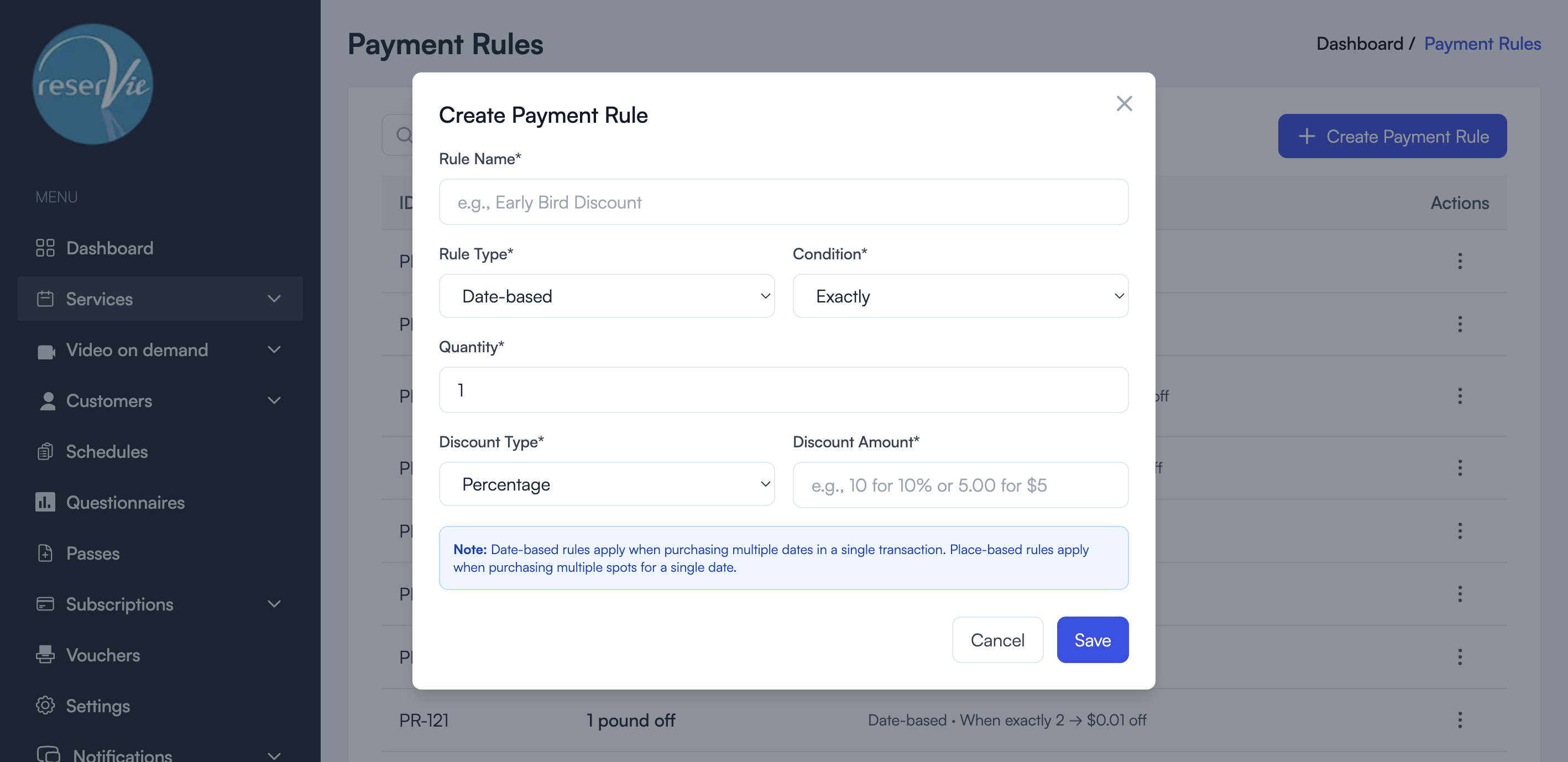
- Fill in the form fields:
Rule Name — A descriptive name for the rule (e.g. “Early Bird Discount”, “4 for 3”).
Rule Type — Choose between:
- Date-based — The rule applies when a customer purchases multiple dates of the same event in one transaction (e.g. booking 4 weekly classes at once).
- Place-based — The rule applies when a customer purchases multiple places (spots) for a single event date (e.g. booking 2 seats for the same class).
Condition — How the quantity is evaluated:
- Exactly — The customer must purchase exactly the specified quantity.
- More than — The customer must purchase more than the specified quantity.
- Less than — The customer must purchase fewer than the specified quantity.
Quantity — The number of dates or places that triggers the rule.
Discount Type — Choose between:
- Percentage — A percentage discount (e.g. 50% off)
- Fixed Amount — A fixed monetary discount (e.g. £5.00 off)
Discount Amount — The value of the discount.
- Click Save to create the rule.
Note: Date-based rules apply when purchasing multiple dates in a single transaction. Place-based rules apply when purchasing multiple spots for a single date.
How the discount is worked out
The quantity decides whether the rule applies. Once it does, the discount comes off each date booked:
- Percentage: that percentage comes off each date. Across the booking, that is the same as that percentage off the total.
- Fixed amount: the amount comes off every date, not once. A “£1.00 off” rule on a 6-date course takes £6.00 off in total.
For a place-based rule, the discount is per date too, not per place: “£5.00 off when booking 2 places” takes £5.00 off that date’s total for both places.
If a fixed amount is more than a date’s price, that date gets no discount at all, so keep fixed amounts below the price of a single date.
A discount voucher entered at checkout is worked out after the payment rule, on the price that is left.
Managing existing rules
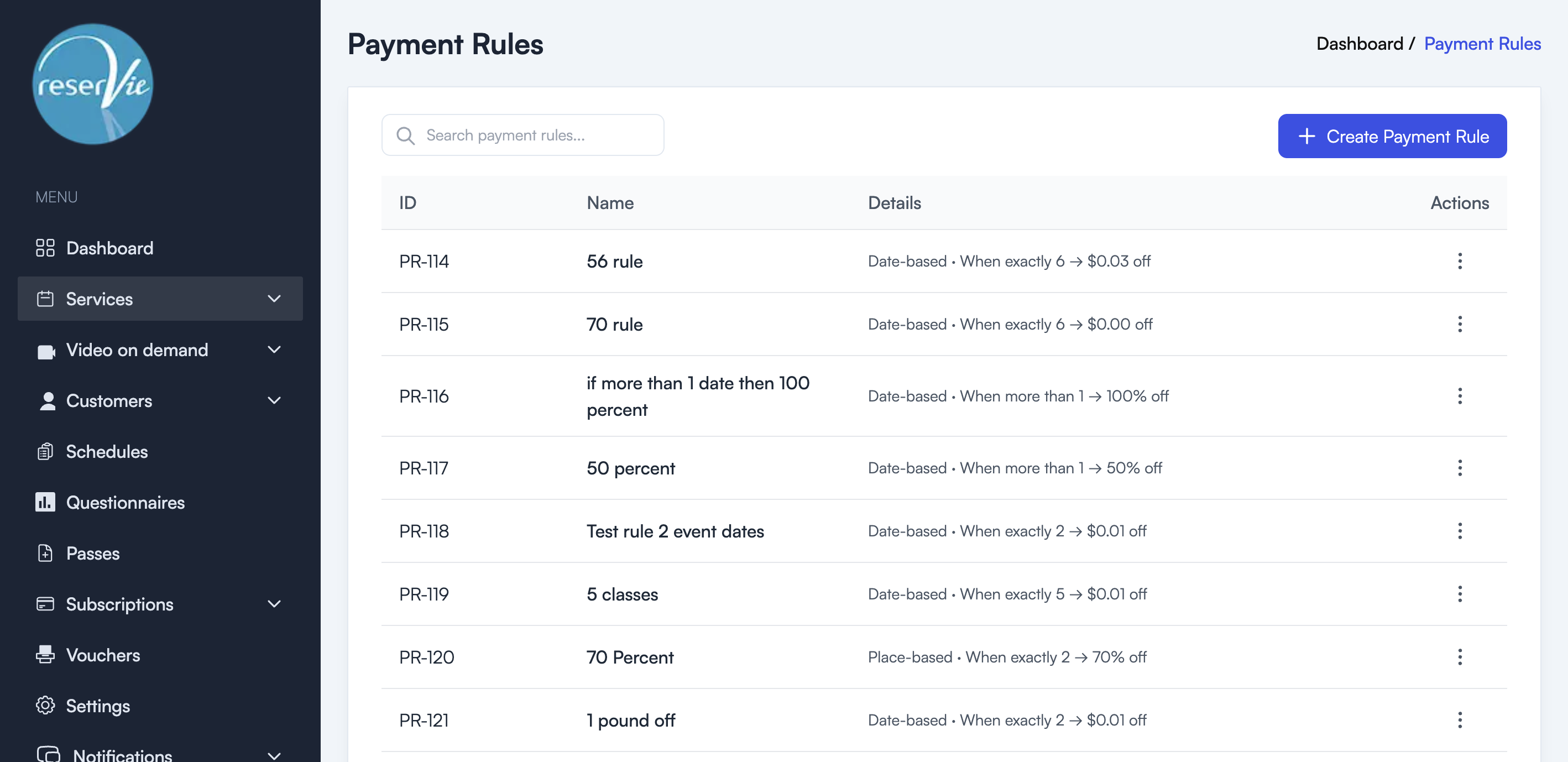
The Payment Rules page shows all configured rules in a table with:
| Column | Description |
|---|---|
| ID | The unique rule identifier |
| Name | The rule name |
| Details | A summary of the rule logic (e.g. “Date-based - When exactly 4 → 50% off”) |
| Actions | Edit or delete the rule |
Click the three-dot menu in the Actions column to edit or remove a rule.
Assigning payment rules to events
After creating a payment rule, you need to assign it to the events where it should apply. This is done from the event configuration page when creating or editing an event.
Common examples
- Book 4 classes, get the 5th free: Date-based, Exactly 5 dates, 20% off. Each of the 5 dates is 20% off, which adds up to one class free. (A fixed amount equal to one class would make every date free.)
- Group discount: Place-based, More than 1 place, 10% off
- Bulk booking: Date-based, More than 3 dates, 15% off
- £2 off each date on a block of 6: Date-based, Exactly 6 dates, Fixed Amount £2.00, which is £12.00 off in total