Overview
Your customers agree to your terms and conditions every time they pay. There are two ways to give them your terms and your privacy policy:
- Link to my own page if they are already on your website.
- Write it here if you don’t have a website, or would rather keep them in one place. We host them on a page of their own.
You set each one up separately, so you can link to your terms and write your privacy policy here, or the other way round.
Both are in Settings, on the Configuration tab.
Linking to your own page
- Go to Settings and click Configuration.
- Under Terms and conditions, choose Link to my own page.
- Paste the full web address of your terms, starting
https://. - Do the same under Privacy policy.
- Click Save at the bottom of the page.

Writing them in reservie
- Go to Settings and click Configuration.
- Under Terms and conditions, choose Write it here.
- Type or paste your wording into the box. Leave a blank line between paragraphs.
- Do the same under Privacy policy if you want that hosted too.
- Click Save at the bottom of the page.
An empty box shows grey headings to write under, such as cancellations and refunds, late arrival, passes, and health and injury. They disappear as soon as you start typing.
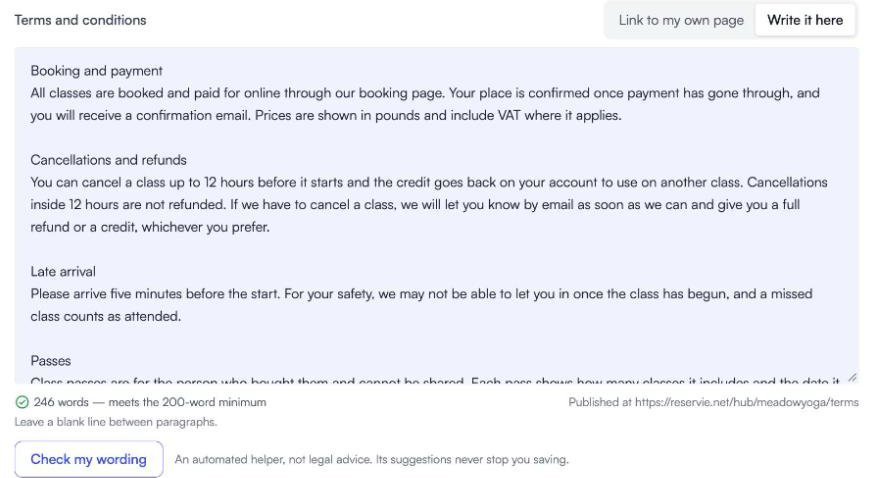
Each one needs at least 200 words. The count under the box shows how many you have and how many more you need, and the page won’t save until both written policies reach 200.
Under the box you’ll also see where the page is published: reservie.net/hub/yourstudio/terms for your terms and reservie.net/hub/yourstudio/privacy for your privacy policy.
Checking your wording
If you’ve never written terms before, Check my wording gives you a quick second opinion. It is an automated helper. It reads what you’ve written, tells you whether it looks like a real set of terms or privacy policy, and lists anything worth adding.
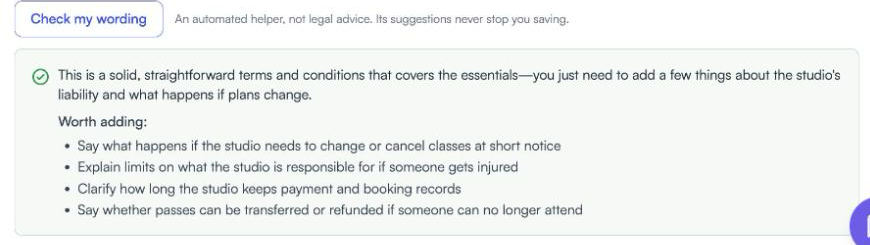
- It only runs once you have 200 words.
- It doesn’t save anything. Edit your wording, check again if you like, then click Save.
- Its suggestions never stop you saving.
The check isn’t legal advice. If you’re unsure what your terms should say, ask a solicitor or your insurer.
Where customers see them
Whichever way you choose, your customers get the same links:
- At checkout, beside the tick box: I have read and agree to the terms & conditions.
- At the bottom of your landing page, as Terms and Privacy.
- In your emails, wherever you use the
{toc}placeholder. See Email template placeholders.
If you switch from a link to written wording, or back again, the links update to match.
Terms for a single event or service
These are your standard terms, shown with every purchase. To add extra terms to one event or appointment service, such as a retreat’s deposit rules, see Event configuration or Managing services. The customer agrees to those as well as your standard terms.
Where to go next
- Settings overview - everything else on the Configuration tab
- Cancellation policies - the cancellation rules reservie applies for you