Overview
A gift voucher starts as a template that you set up once. Each time someone buys from the template, reservie creates a new voucher with its own code. The voucher holds a balance that the person receiving it spends with you at checkout.
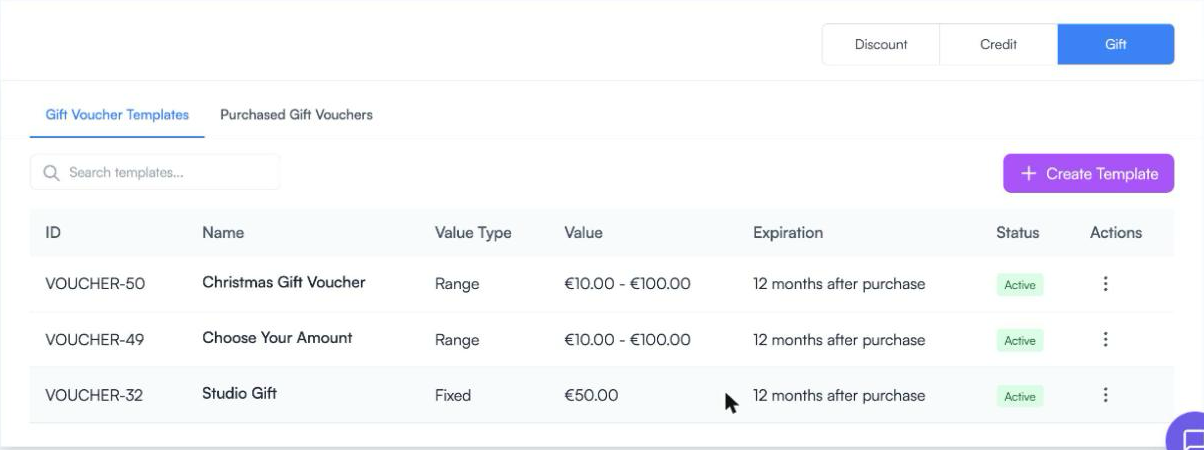
Templates are managed from Vouchers, on the Gift tab.
Creating a template
- Go to Vouchers and click the Gift tab.
- Click + Create Template.
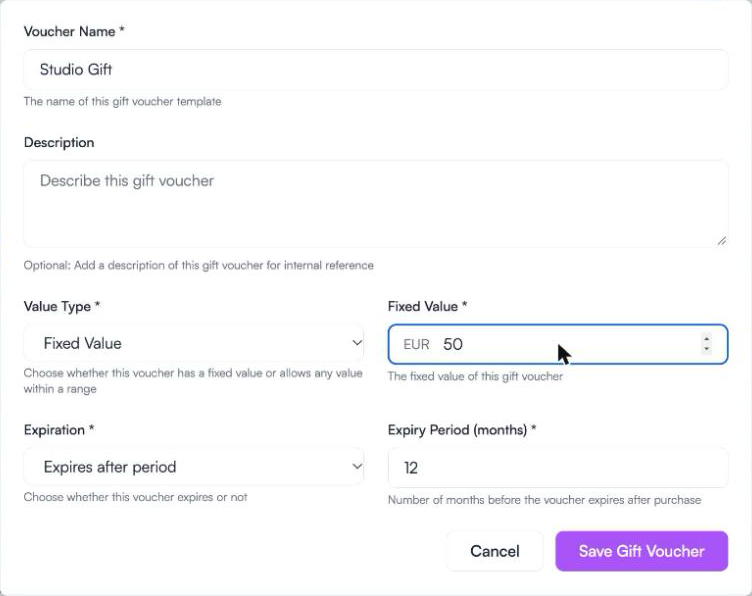
- Fill in the details:
- Voucher Name: what customers see, such as Studio Gift or Christmas Gift Voucher.
- Description: optional. It is shown to customers under the name, so write it for them.
- Value Type: Fixed Value for a set amount, or Range Value to let the buyer choose an amount between a minimum and a maximum.
- Expiration: No Expiration, or Expires after period with the number of months. The months are counted from the day each voucher is bought.
- Click Save Gift Voucher.
Putting vouchers on your booking page
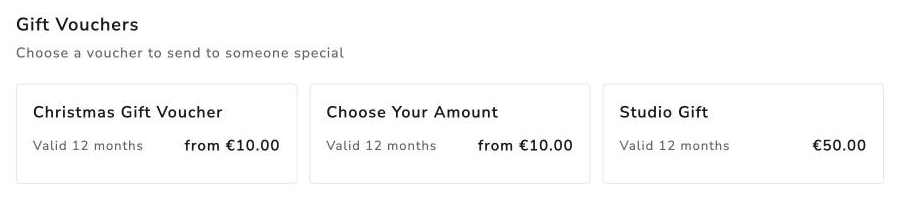
Gift vouchers appear on a schedule’s Vouchers tab once you switch them on for that schedule.
- Go to Schedules, click ⋮ next to the schedule, then Edit.
- Under Display options, switch on Gift Vouchers.
- Click Save Schedule.

Every active template is shown. To stop selling one, deactivate it (see below).
How customers buy a voucher
The customer opens the Vouchers tab on your booking page and picks a voucher.
For a range voucher, they choose the amount with the slider, or tap the amount to type it.
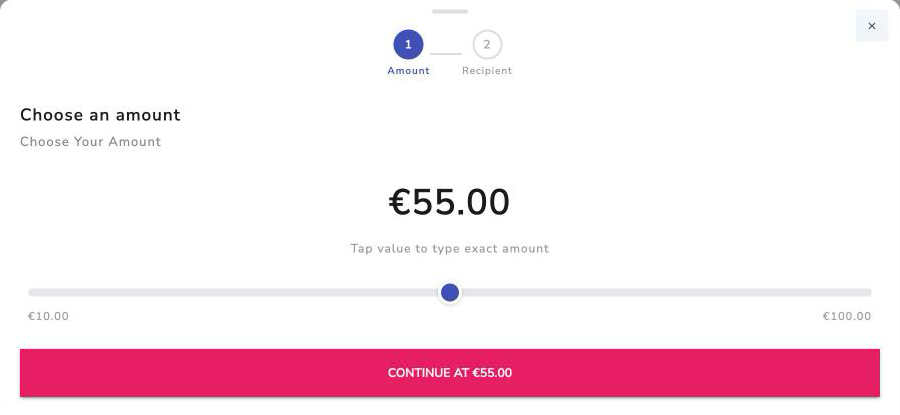
Then they fill in who it’s for: the recipient’s name and email, who it’s from, and a personal message. It goes in the basket and they pay as usual.
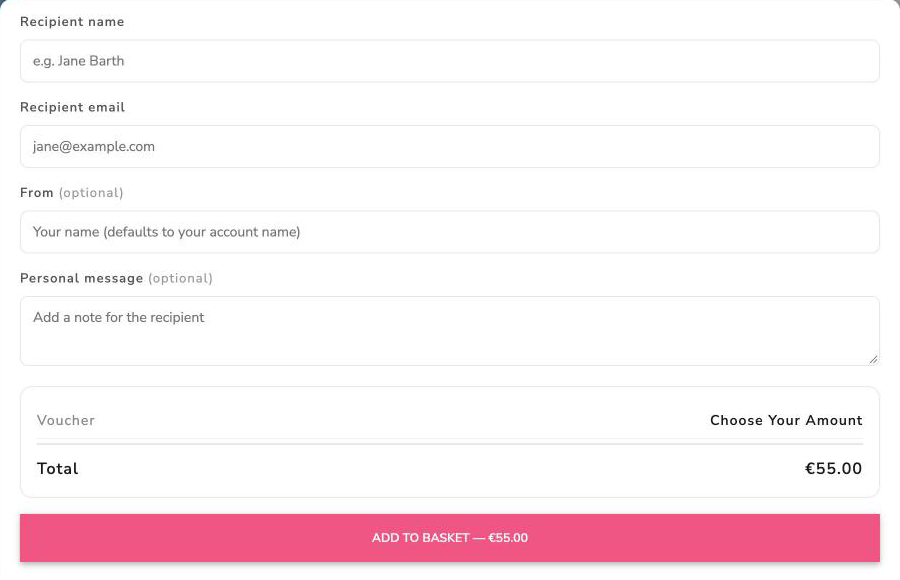
The recipient is sent the code by email, with the message. Both people can see the voucher in their account. See Gift vouchers in the customer’s account.
How a voucher is spent
The recipient enters the code in the Voucher / discount code box at checkout. The voucher’s balance comes off the total.
- It can be spent on classes, appointments, videos and passes.
- It can’t be spent on subscriptions or on another gift voucher.
- It can be used in parts. Whatever is left stays on the voucher until it expires.
Editing, deactivating and deleting
Click ⋮ next to a template.
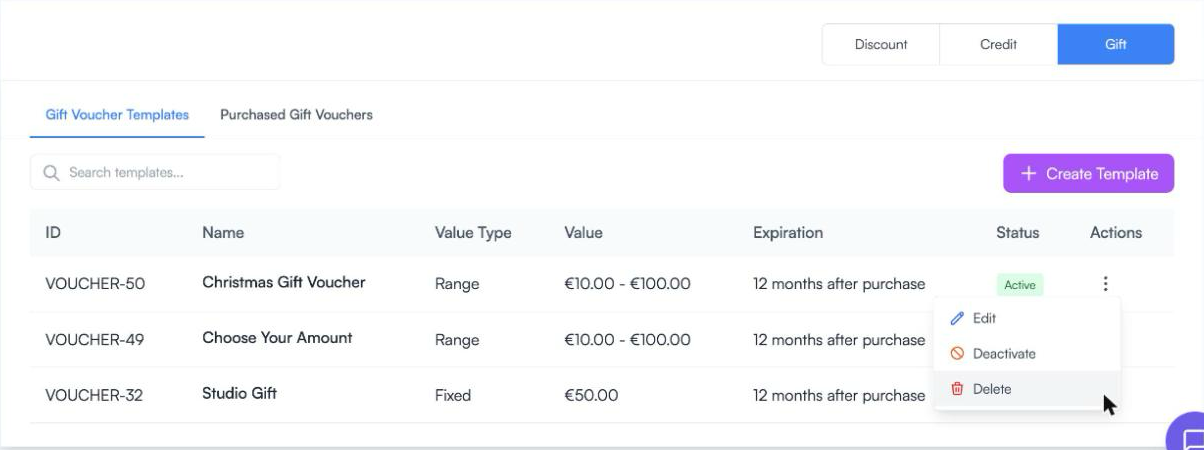
- Edit changes the name, description, value or expiry.
- Deactivate takes it off sale. It can be reactivated later.
- Delete removes the template. This can’t be undone.
Where to go next
- Gift Vouchers - Giving and Tracking - giving a customer a voucher from the studio, and finding the ones you’ve sold
- Discount types: vouchers, credits, gifts and rules - how gift vouchers compare with the other types