Overview
Every gift voucher belongs to a customer. Whether it was bought on your booking page or given by the studio, you’ll find it on that customer’s record in Customer Manager.
Giving a customer a gift voucher
The studio can give a gift voucher to any customer, for example as a prize, a thank-you, or when someone buys one from you in person.
- Go to Customers > Manage and open the customer.
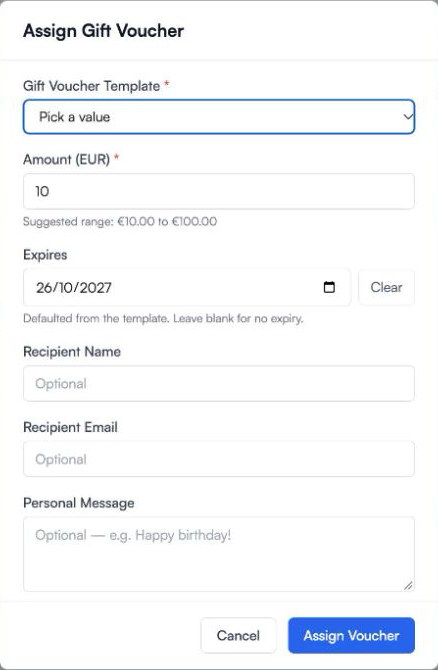
- Click the VOUCHERS tab, then Assign Gift Voucher.
- Choose the Gift Voucher Template.
- For a range template, enter the Amount. The template’s range is shown as a guide.
- Check the Expires date. It is filled in from the template, and you can change it or clear it for no expiry.
- To give it to this customer, leave the recipient fields empty. To have it go to someone else, add their Recipient Name and Recipient Email, and a Personal Message if you like. Tick Send voucher code to recipient via email to email them the code.
- Click Assign Voucher.
When there is a recipient, it works as if the customer bought it for them. The customer sees it on their record as Gift for the recipient, and the recipient is the one who spends it.
Finding vouchers customers have
Open the customer in Customer Manager and click the VOUCHERS tab. Each gift voucher shows its value, what is Remaining, when it expires, and who it is between:
| Label | Meaning |
|---|---|
| Gift for name | This customer bought it for someone else |
| Gift from name | This customer received it from someone |
| Gift from the studio | The studio gave it to them |
| Gift to yourself | They bought it for themselves |
Their total balance across vouchers and credit notes is shown under Voucher / credit balance at the top of the page.
Where to go next
- Gift Vouchers - How to Set Up - templates and selling on your booking page
- Gift vouchers in the customer’s account - what customers see