
What it does
Connect your Mailchimp account and choose one audience. From then on, reservie looks after your list for you:
- Customers who said yes to marketing emails are added to your audience. A new opt-in reaches Mailchimp within about 5 minutes. Nobody who didn’t opt in is ever sent.
- Customers can be tagged by what they book, for example “Yoga” or “Meditation”, so you can email just the people who come to one kind of class. See Tagging customers in Mailchimp.
- Unsubscribes are kept in step both ways. If a customer opts out in reservie, they’re unsubscribed in Mailchimp. If they unsubscribe in Mailchimp, their marketing preference is turned off in reservie too. See Mailchimp and your customers’ consent.
So there’s no more exporting a list and importing it into Mailchimp, and no risk of emailing someone who said no.
The Mailchimp integration is free on every reservie plan.
Before you start
You need:
- A Mailchimp account.
- At least one audience in Mailchimp. A new Mailchimp account comes with one.
- The marketing tick box switched on at checkout. Go to Settings → Checkout Settings and switch on Ask for email marketing consent at checkout. Only customers who tick it are sent. See Checkout Settings.
Connecting
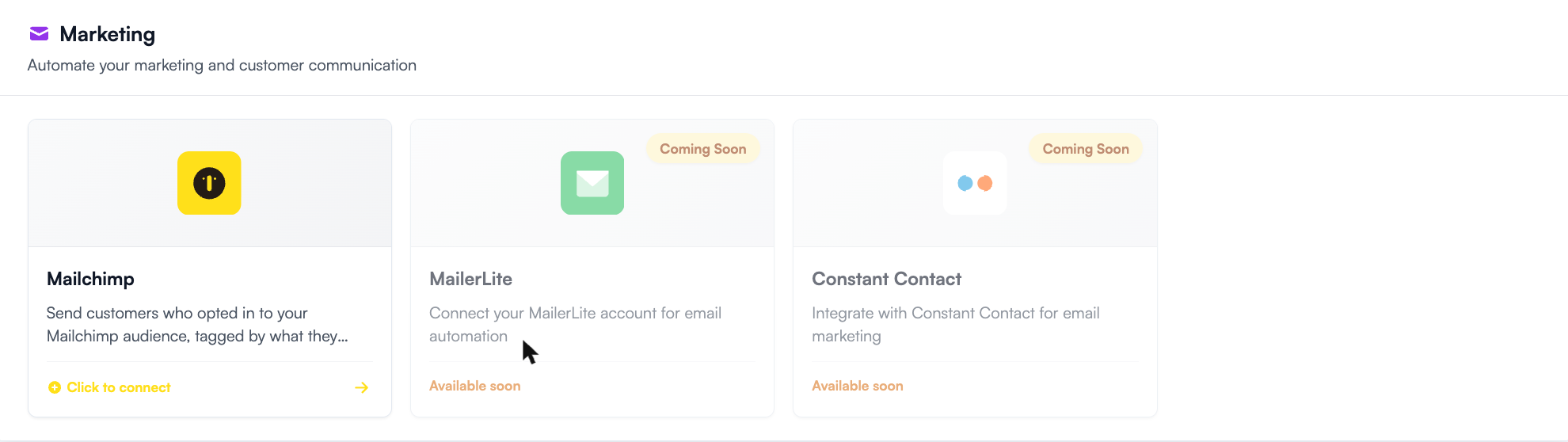
Go to Integrations. In the Marketing section, click the Mailchimp card.
A Mailchimp window opens. Sign in to Mailchimp and approve reservie. Your Mailchimp password stays with Mailchimp: reservie never sees it.
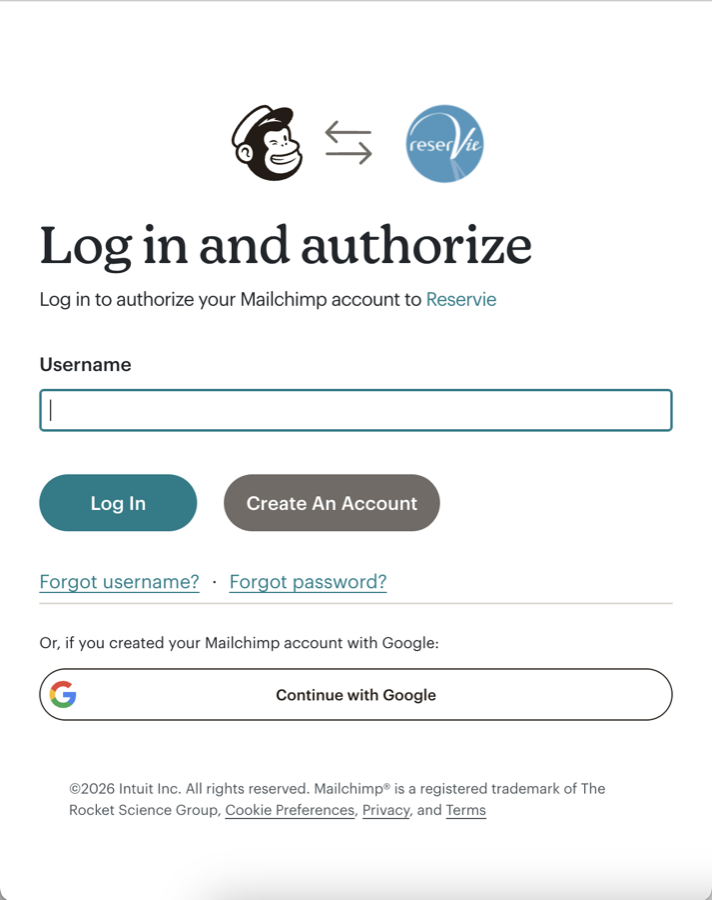
If nothing opens, your browser has blocked the window. Allow pop-ups for reservie and try again.
Back in reservie, choose the audience your customers go into, then click Continue.
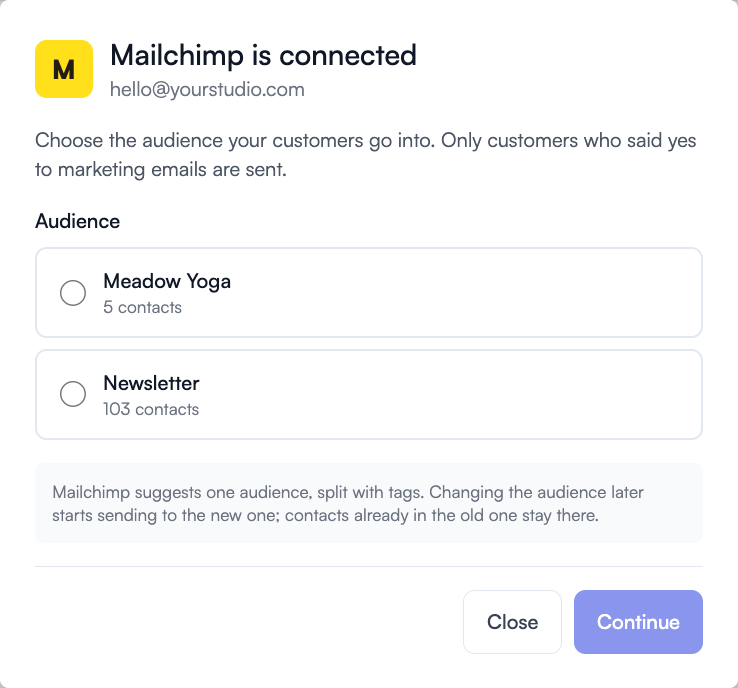
Mailchimp suggests using one audience and splitting it with tags, rather than having several audiences. Most studios should pick their main one.
If you want tags, tick Tag contacts by category and choose the Categories to tag.
Click Save. You’ll see “Mailchimp settings saved. Changes reach Mailchimp within 5 minutes.”
The first full send starts within 5 minutes. The Mailchimp card then shows Connected, your audience, and when it last sent.
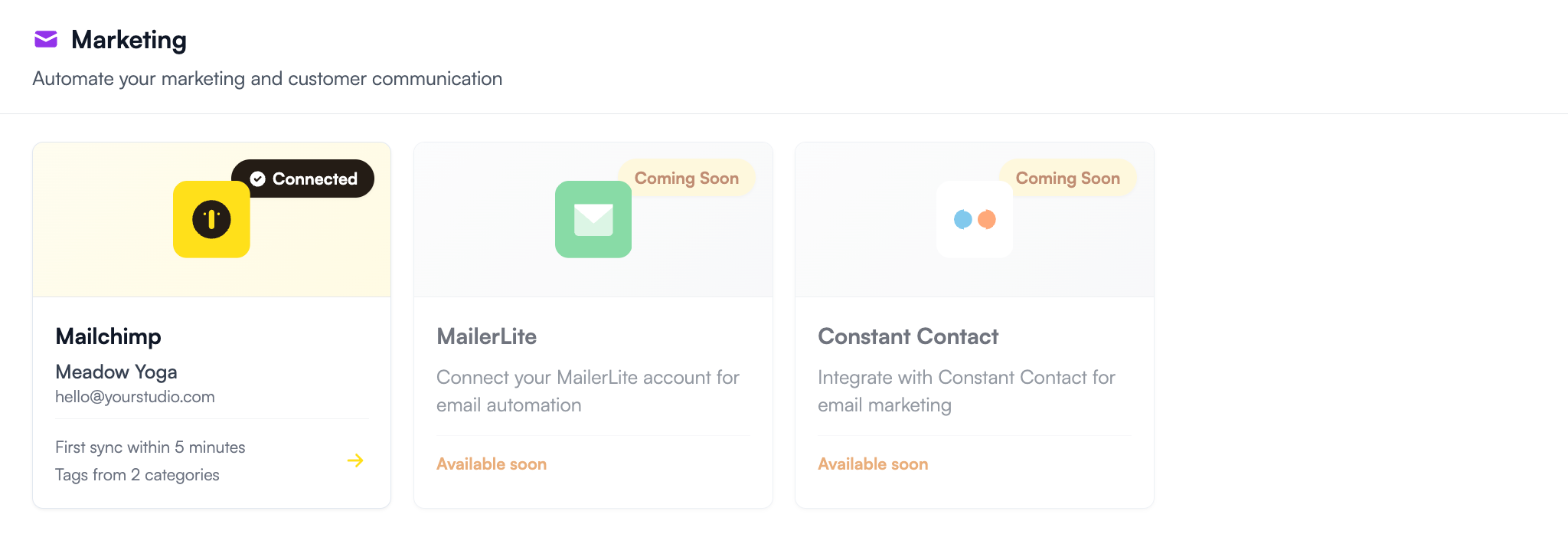
Your Mailchimp settings
Click the Mailchimp card at any time to open its settings.
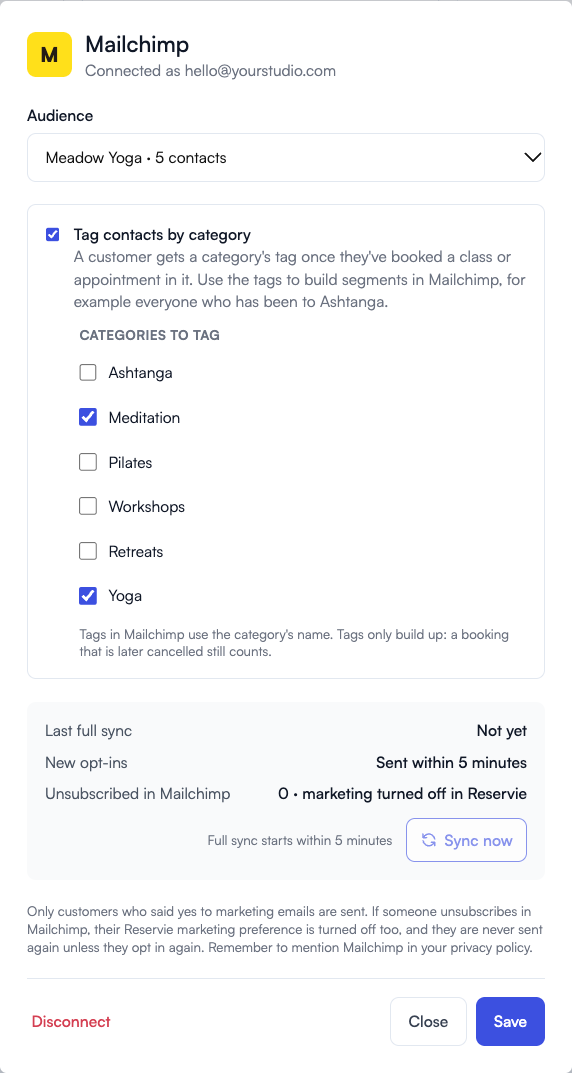
- Connected as shows the Mailchimp login that approved reservie.
- Audience can be changed. New customers then go into the new audience, and contacts already in the old one stay there.
- Tag contacts by category and Categories to tag set which tags are added.
- Last full sync shows when everything was last checked, and how many contacts were sent.
- Unsubscribed in Mailchimp shows how many people unsubscribed or bounced in Mailchimp, and so had their marketing preference turned off in reservie.
- Sync now checks everything again within 5 minutes. You rarely need it, because a full check runs once a day anyway.
Disconnecting
Click the Mailchimp card, then Disconnect. reservie asks you to confirm.
- reservie stops sending customers to Mailchimp.
- Nothing is deleted from Mailchimp. Everyone already in your audience stays there.
- You can connect again at any time.
Mention Mailchimp in your privacy policy
Mailchimp now holds your customers’ names and email addresses, so mention it in your privacy policy. See Terms and privacy policy.