What a collection is
A collection is a course or series sold as one item. One purchase opens every video in it, including any you add later, until the customer’s access ends.
Videos inside a collection have no price of their own. They are only sold together.
Create a collection
Go to Video on demand and click Create Video Collection. There are three steps.
- About. A name, a description of what is in it and who it is for, and an optional cover picture.
- Selling. The price and how long access lasts.
- Review. Check it, then Create collection.
The cover picture
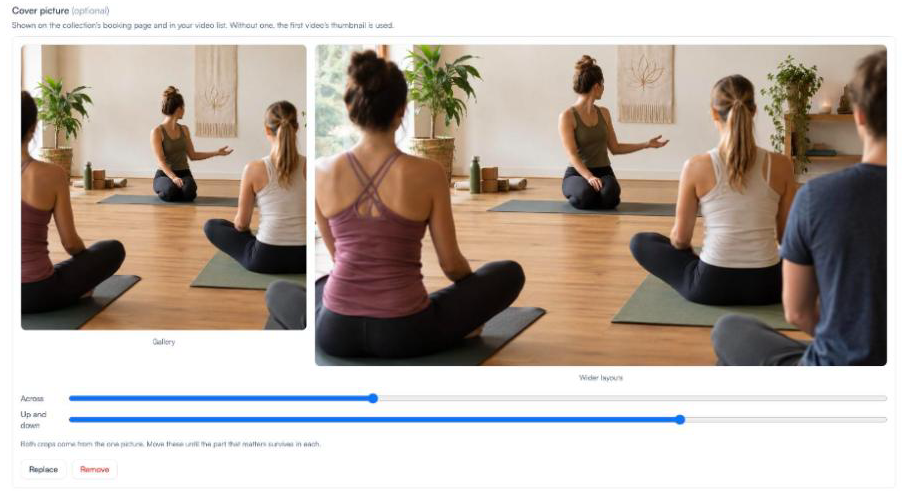
The cover shows on your booking page and in your video list. Without one, the first video’s thumbnail is used. Move the sliders until the important part shows in both shapes.
Price and access
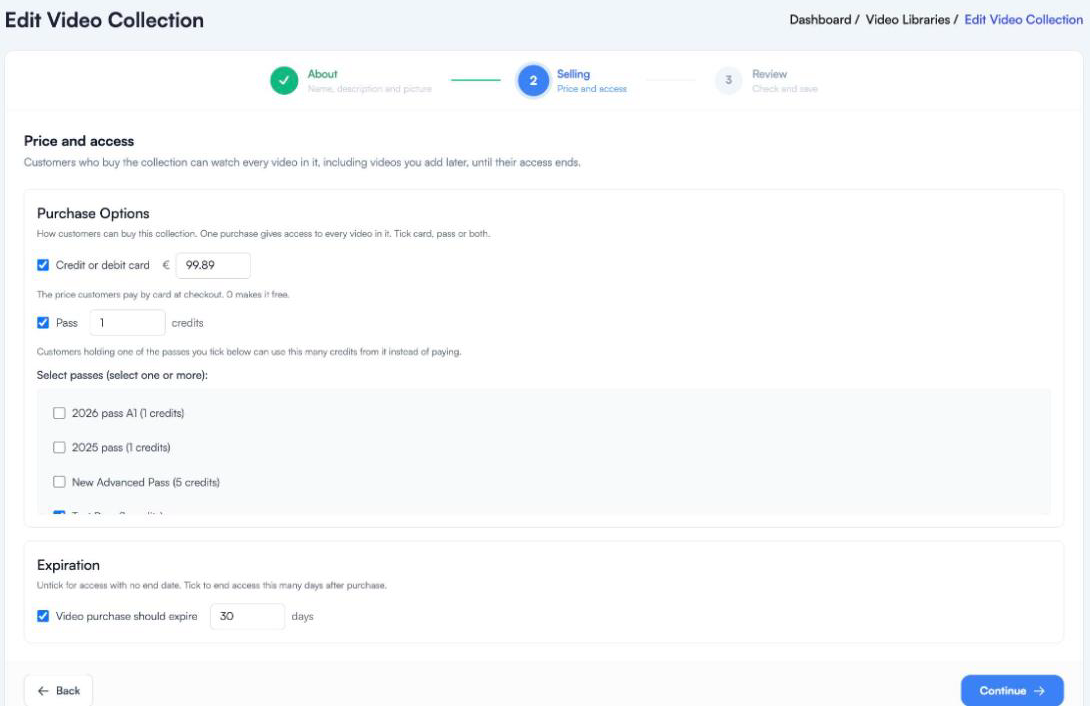
Tick Credit or debit card, Pass, or both. For a pass, tick which passes count and how many credits it costs.
Leave Expiration unticked for access that never ends. Tick it to end access a number of days after each customer buys.
Add videos
Open the collection and click Upload Video. Each video is uploaded the same way as in a library, but the Selling step simply says it has no price of its own.
You can also move a video in from a library. See Moving a video.
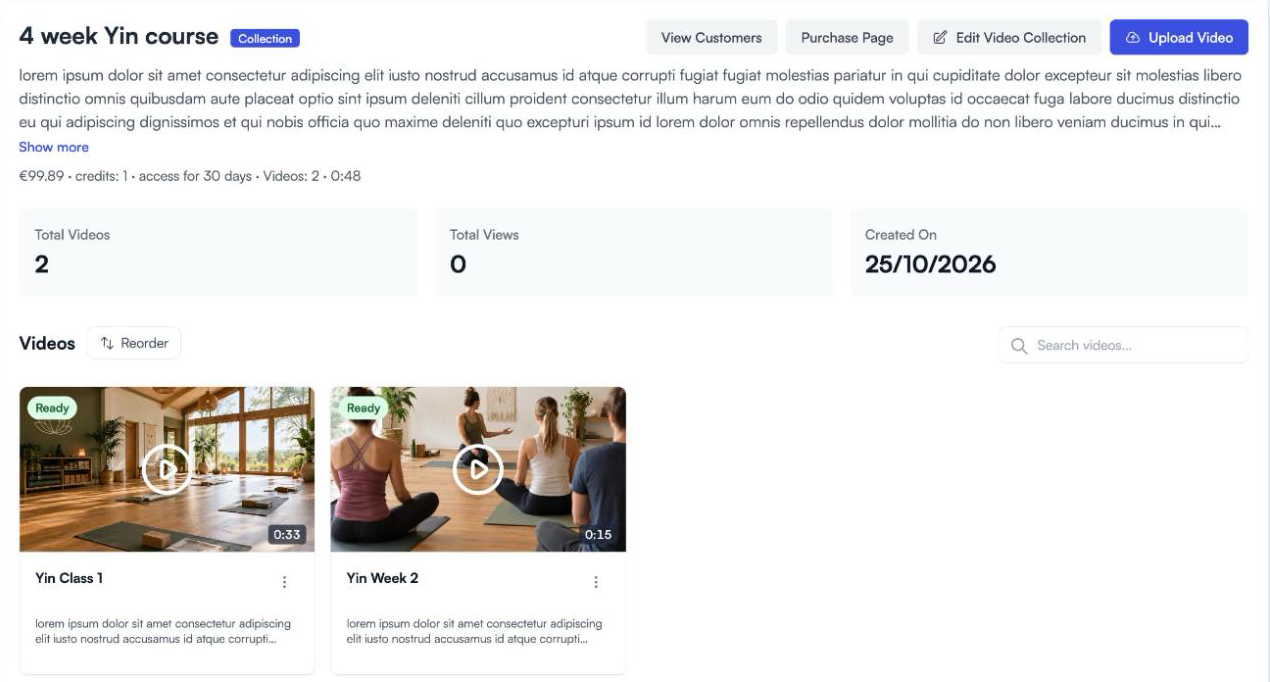
The top of the page shows the price, how long access lasts, and how many videos it holds. Reorder puts the videos in the order customers see.
Change a collection
Click Edit Video Collection to change the name, cover, price or access. The collection’s ⋮ menu on the Video Libraries page also has View Customers and Purchase Page.
Delete a collection
Delete collection deletes the collection and every video in it. If anyone has bought it, a red warning says how many customers will lose access straight away, and you must tick to say you understand before it lets you go ahead.
This can’t be undone.