
Create a library
A library is a folder for videos you sell one at a time. Go to Video on demand, click Create Library and give it a name. That is all a library needs.
To rename it later, use Edit in the library’s ⋮ menu.
Upload a video
Open the library and click Add video. Upload a video is already selected. (To add a video you already have on YouTube or Vimeo, choose YouTube or Vimeo link instead; see Adding YouTube and Vimeo videos.) There are four steps.
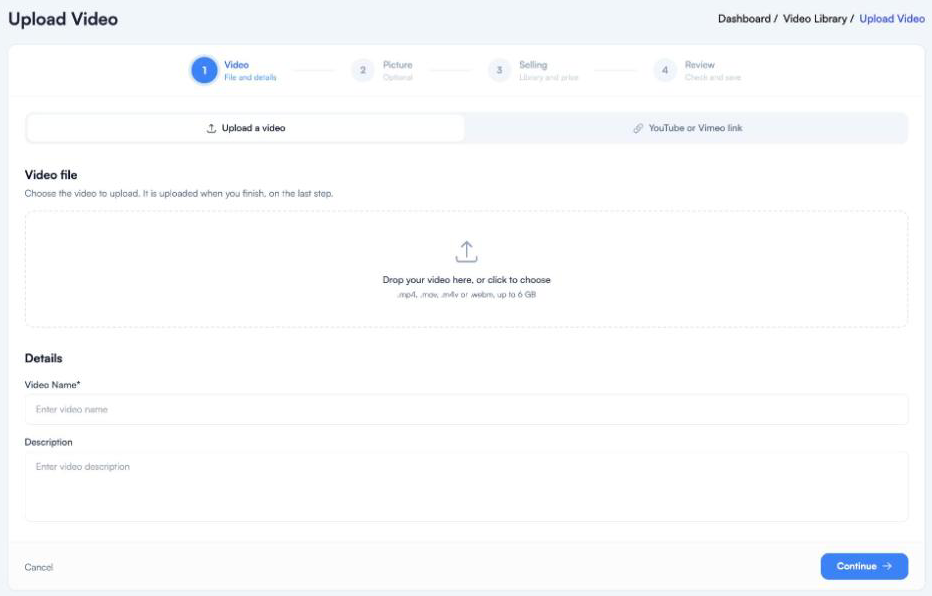
- Video. Choose the file (.mp4, .mov, .m4v or .webm, up to 6 GB), then add a name and a description.
- Picture. Leave it on Automatic to use a frame from the video, or upload your own picture.
- Selling. Set the price (see below).
- Review. Check it and save. The upload starts now, so you don’t wait at step one.
The video shows Processing while it is prepared, then Ready. Customers only see it when it is ready.
When you have used all the videos or hours on your plan, you can’t upload any more. Upgrade, or delete videos you no longer sell (see Video plans and your viewing allowance). Add video stays available while you can still add a YouTube or Vimeo link.
Your own picture
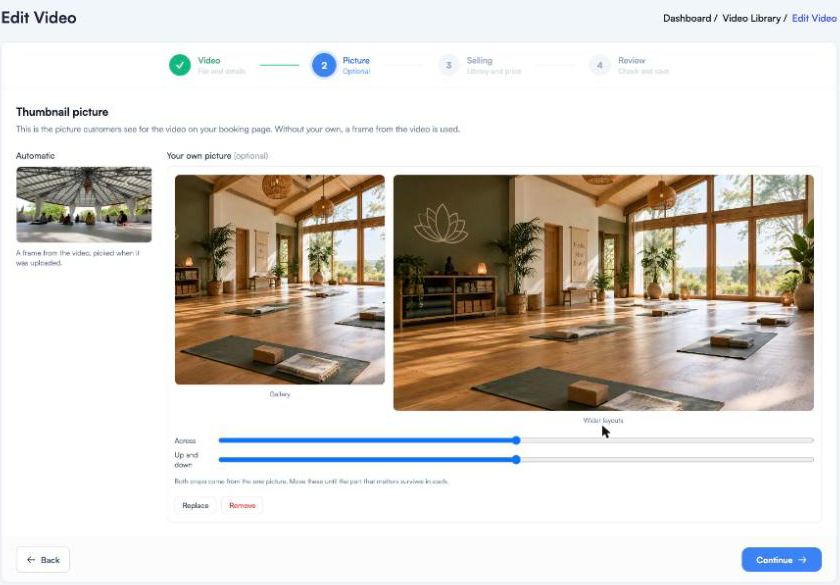
Your picture is shown in two shapes. Move the Across and Up and down sliders until the important part shows in both. Landscape pictures at least 800 pixels across work best.
Setting the price
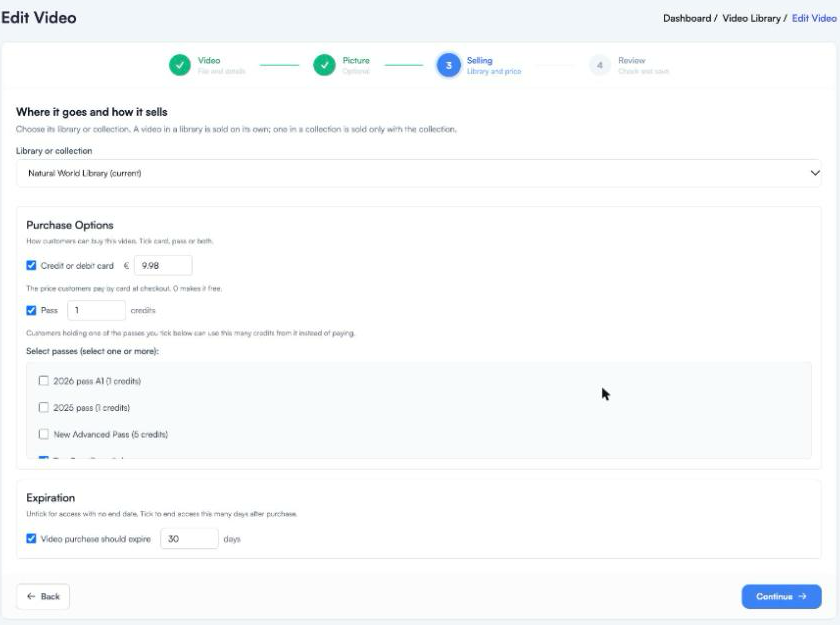
- Credit or debit card: the price at checkout. 0 makes it free.
- Pass: tick the passes customers can use, and how many credits it costs.
- Expiration: leave unticked for access that never ends, or tick and enter a number of days. The days count from each customer’s own purchase.
Change a video
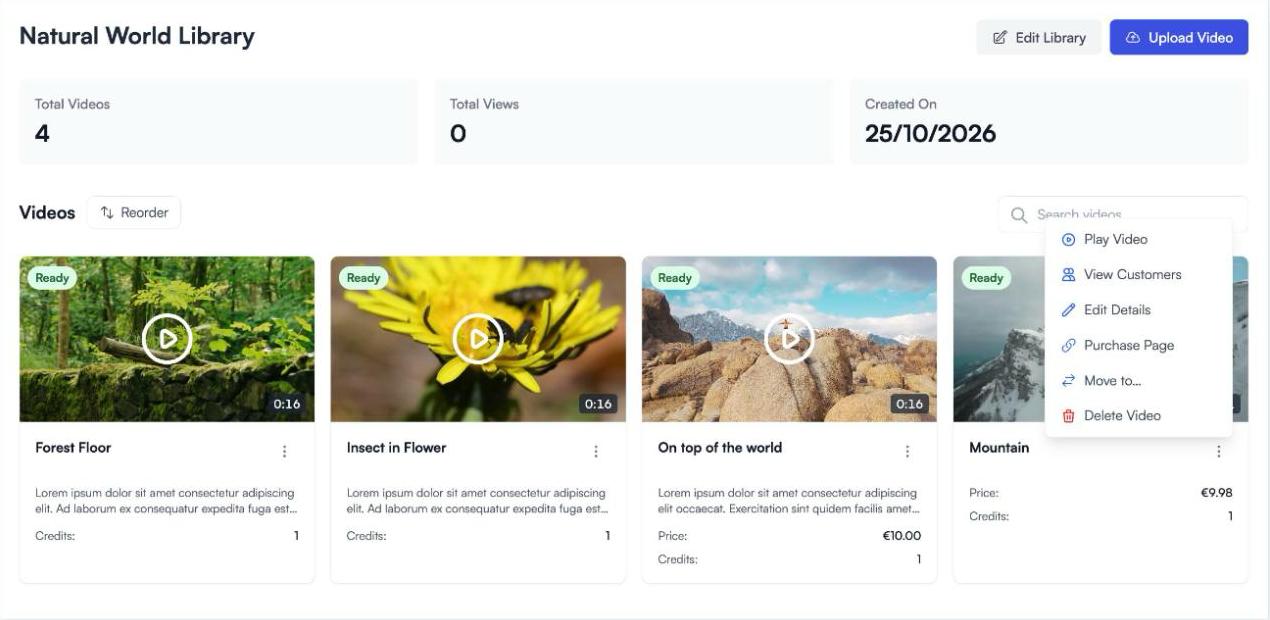
Each video’s ⋮ menu has:
- Play Video to watch it
- View Customers to see who has it
- Edit Details to change the name, picture or price, using the same four steps
- Purchase Page for a link that sells just this video (see Buy-now pages)
- Move to… (see Moving a video)
- Delete Video
Put videos in order
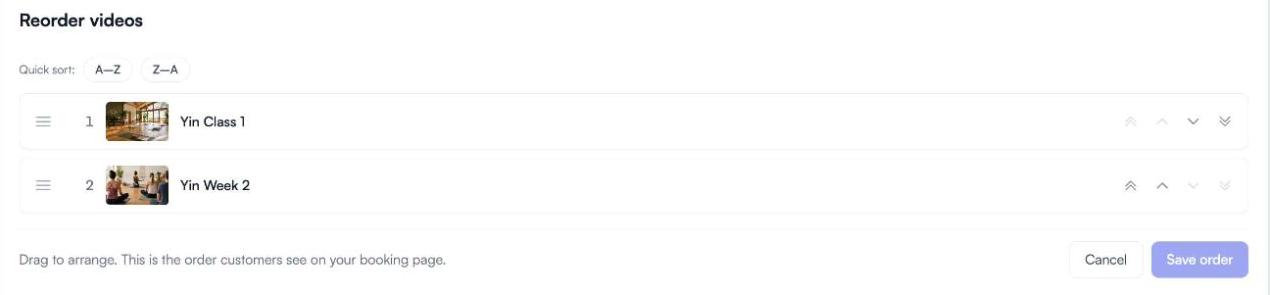
Click Reorder above the videos. Drag a row, or use the arrows, then press Save order. This is the order customers see.
Delete a video or a library
Delete Video asks you to confirm. If customers have bought the video, a red warning tells you how many will lose it.
Delete library removes the library and every video in it. Customers who bought those videos can no longer watch them.
Neither can be undone. If you only want to stop selling a video, move it instead.