When to use this
Use it when a customer has paid you another way, or you want to use their pass credits for them. They see the video in their account straight away.
You can do it from two places. Both open the same form.
From Video on Demand
Open the video or collection’s ⋮ menu and choose View Customers. You’ll see everyone who has access, how they paid and when their access ends.
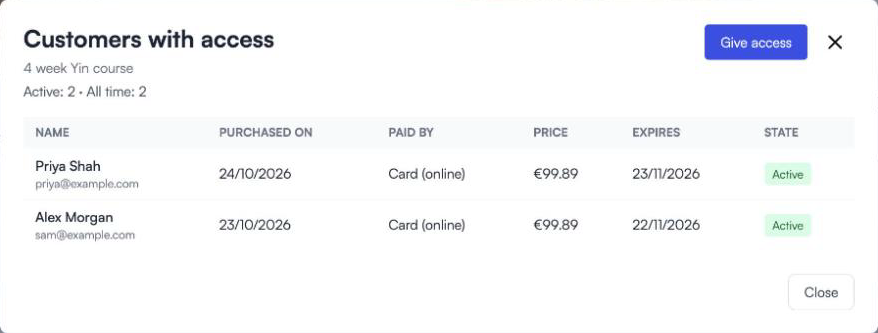
Click Give access, choose the customer, then Payment by cash or Charge a pass.
From Customer Manager
Open the customer and go to the Videos tab. It lists everything they have, with the date, expiry, price and state.
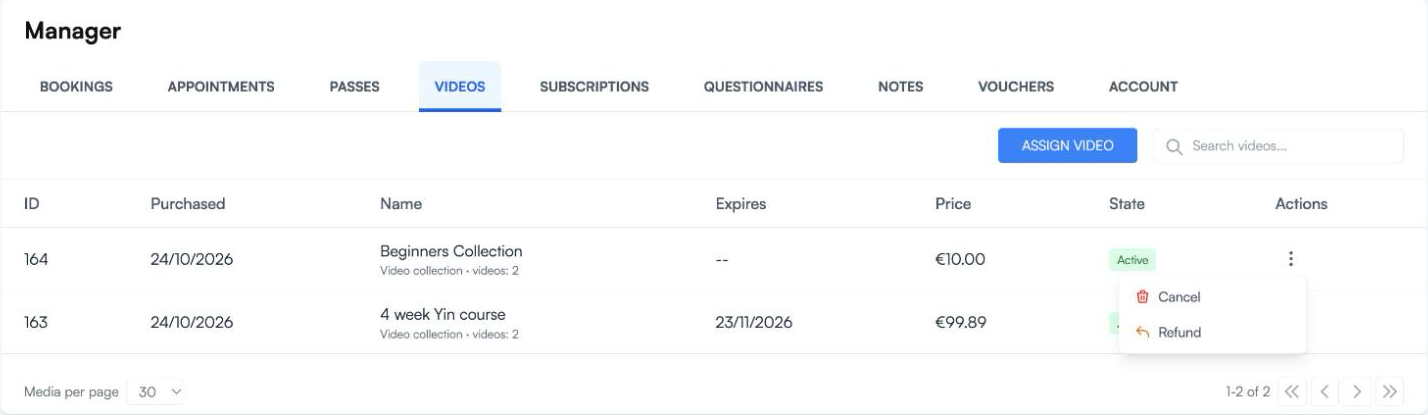
Click Assign Video and choose Payment by cash or Charge a pass.
Filling in the form
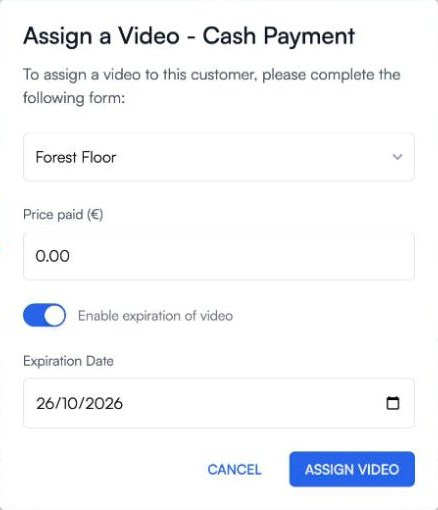
- Choose the video or collection. A collection gives access to every video in it, including ones added later.
- For cash, enter the price paid. For a pass, choose the pass and the credits to use.
- Switch on Enable expiration of video and pick a date if access should end.
- Click Assign Video.
Taking access away
In the customer’s Videos tab, the ⋮ menu on a purchase has Cancel and Refund. Cancelling a pass purchase returns the credit to the pass.