
Switch it on
Your videos show on your booking page through a schedule.
- Go to Schedules, open the schedule’s ⋮ menu and choose Edit.
- Under Display options, switch on Videos.
- Click Save Schedule.
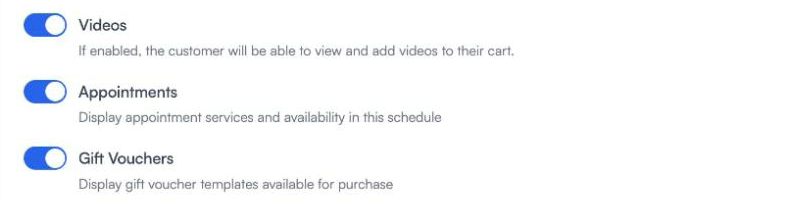
The switch is per schedule, so you can show videos on one schedule and leave them off another. To try it before customers see it, use Test in the schedule’s ⋮ menu.
What customers see
The schedule gains a Videos tab. It lists your collections and single videos in the order you set with Reorder (see Libraries and videos). Each one shows its picture, running time, price and how long access lasts.
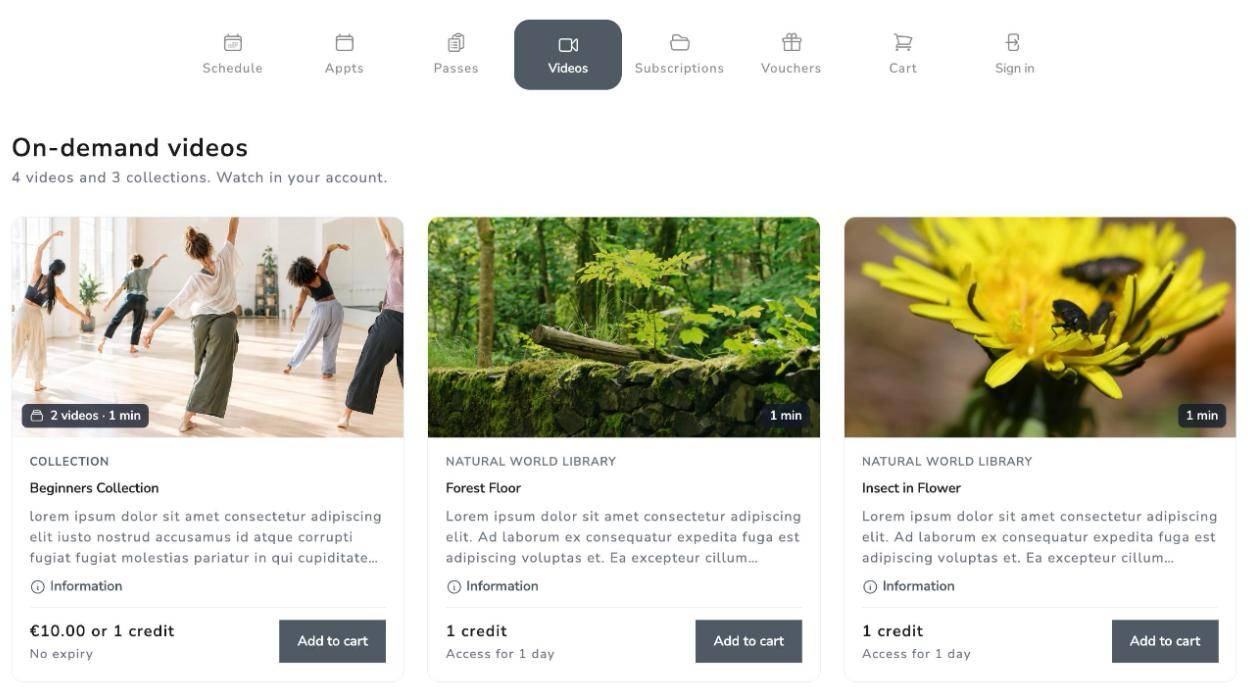
Information opens the details. For a collection, that includes the list of videos inside it.
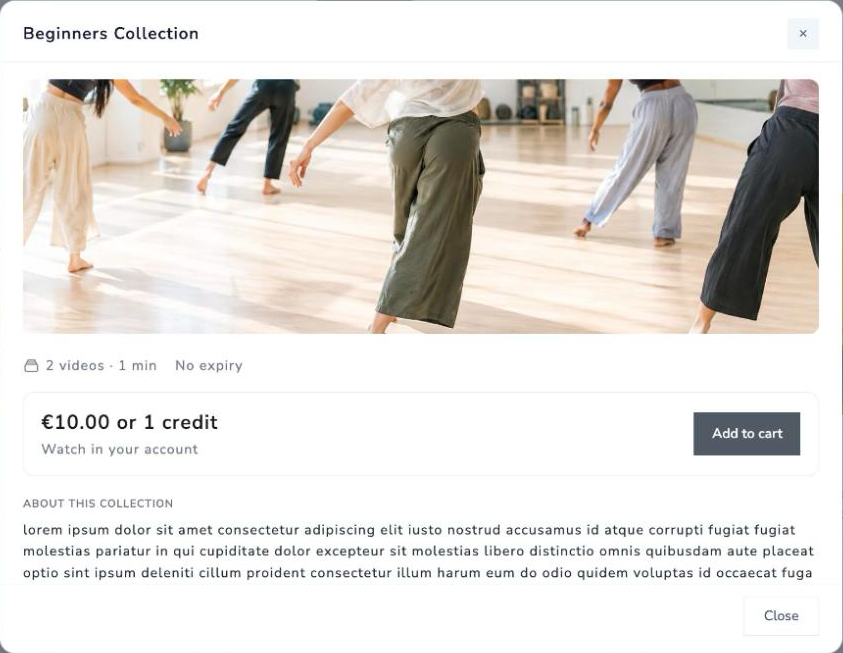
How a customer buys
- They click Add to cart.
- If they are not signed in, they sign in or create an account.
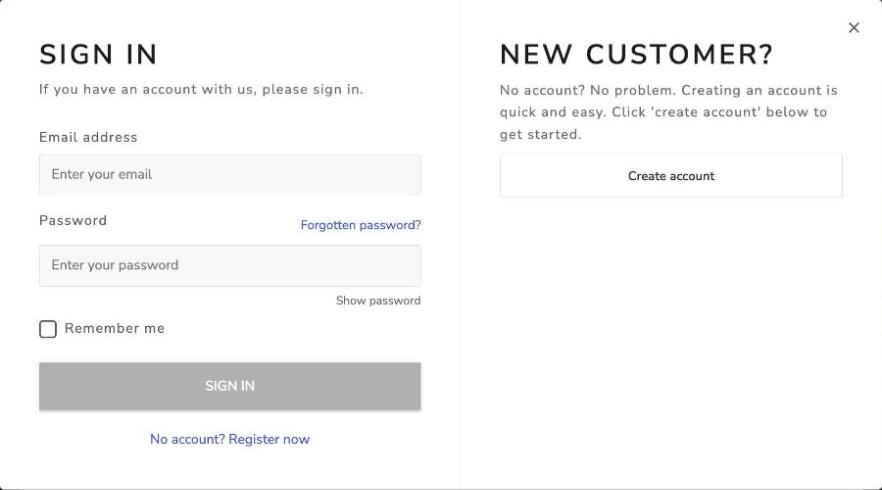
- They pay at checkout by card, or with a pass if you allow it.
- The video or collection appears in their account. See What your customers see.